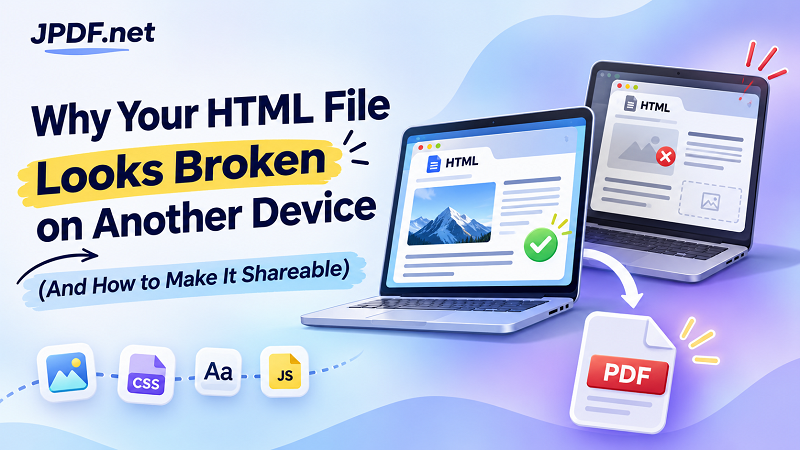
You've just finished an HTML report. It looks great on your computer. The images are in place, the typography feels right, and every section appears exactly where it should. You send it to a colleague, open it on another laptop, or upload it to a shared folder. Suddenly, things start falling apart. The logo is missing. Images refuse to load. The carefully chosen font has been replaced by something completely different.
- An HTML File Is Often More Than Just One File
- What Actually Breaks When You Move an HTML File?
- Relative Paths: The Missing Connection
- External Resources: When the Internet Gets Involved
- Custom Fonts: The Silent Design Killer
- JavaScript: Content That Doesn't Exist Until It Loads
- Three Situations Where HTML Becomes Difficult to Share
- 1. Sending an HTML Report to a Client
- 2. Archiving an Invoice or Business Report
- 3. Sharing Documents With Non-Technical Users
- When Should You Keep HTML and When Should You Use PDF?
- Turn Your HTML Content Into a More Portable Document
- What a PDF Can Preserve—and What It Cannot
- Make Your Documents Easier to Share
So, what happened? Did the HTML file get corrupted during transfer? Not necessarily. The problem may be that your HTML document depends on resources that were never included in the file itself. And that's one of the easiest things to overlook when sharing web-based documents.
An HTML File Is Often More Than Just One File
Here's something worth understanding before blaming your browser: an HTML file doesn't always contain everything you see on the screen.
HTML provides the structure of a document. It tells the browser where headings, paragraphs, images, tables, and other elements belong. But the visual experience often depends on additional resources.
Think of a typical HTML report. It might use:
- HTML: The main content and document structure.
- CSS: Colors, spacing, typography, and layout.
- Images: Logos, charts, illustrations, and product photos.
- Fonts: Custom typefaces used throughout the document.
- JavaScript: Interactive elements, dynamic content, and additional functionality.
These resources can live in separate files or come from external websites. For example, a report might have the following folder structure:
My-Report/ ├── report.html ├── css/ │ └── style.css ├── images/ │ ├── logo.png │ └── chart.jpg └── fonts/ └── custom-font.woff2
When you open report.html on your computer, the browser can locate the supporting files because they're sitting in the expected folders. But send only report.html to someone else, and those connections may disappear.
That's the catch: the file you see isn't necessarily the complete document you need to share.
What Actually Breaks When You Move an HTML File?
Moving an HTML file doesn't automatically damage its contents. The real trouble usually starts when the document can no longer locate something it depends on.
Relative Paths: The Missing Connection
HTML frequently uses relative paths to locate images, stylesheets, and other resources.
For example:

This tells the browser to look for an image inside an images folder relative to the HTML file.
If you move the HTML file somewhere else without moving the supporting folder, the browser has nowhere to find that image. The result is a broken image placeholder instead of your company logo.
The same problem can affect CSS files, custom fonts, and other local resources.
External Resources: When the Internet Gets Involved
Some HTML documents load resources from external websites rather than storing everything locally.
A stylesheet might be linked from a content delivery network. A font might come from a third-party service. An image might be hosted on a remote server.
This setup works nicely when everything is available. But what happens when the external server goes offline, the resource gets deleted, or the viewer has no internet connection?
Your document may look different from the original.
External dependencies can also introduce access restrictions, authentication requirements, or privacy concerns. A file that works perfectly in your environment isn't guaranteed to work in someone else's.
Custom Fonts: The Silent Design Killer
Missing fonts are particularly annoying because the document may still look complete at first glance.
If the browser can't access the original typeface, it may substitute another font. That changes more than appearance. Different fonts have different character widths, line heights, and spacing.
As a result, headings can wrap onto additional lines, paragraphs become longer, and carefully arranged sections may shift.
Your content is still there, but the visual identity has quietly disappeared.
JavaScript: Content That Doesn't Exist Until It Loads
Some HTML documents rely on JavaScript to display information.
A dashboard might load charts from an API. A report might generate tables after receiving data. An interactive document might reveal additional sections when someone clicks a button.
If those scripts cannot run or their dependencies are unavailable, the document may display incomplete information.
This is an important distinction: an HTML file can contain instructions for displaying content without actually containing all the final content at the moment someone opens it.
Three Situations Where HTML Becomes Difficult to Share
The technical details are interesting, but the real frustration appears during everyday work. Here are three situations where a seemingly simple HTML file can become a headache.
1. Sending an HTML Report to a Client
Imagine a freelancer preparing a monthly performance report for a client. The report includes a branded header, several charts, custom typography, and a collection of images.
Everything looks professional on the freelancer's laptop. But the client receives only the HTML file.
Without the supporting assets, the report may open with missing graphics, inconsistent styling, or broken sections.
Now the freelancer has to explain how to download the entire folder, where to place the files, and which browser to use. That's a lot of unnecessary back-and-forth for something that should have been a simple attachment.
2. Archiving an Invoice or Business Report
HTML can be useful for generating invoices, statements, and internal reports. It's flexible, easy to automate, and works well with templates.
However, storing an HTML file doesn't necessarily guarantee that it will look the same months or years later.
External images may disappear. Fonts may become unavailable. Linked stylesheets can change. Even the underlying data may be updated somewhere else.
For records that need a consistent appearance, keeping a fixed document version is often a more practical approach.
3. Sharing Documents With Non-Technical Users
Not everyone wants to deal with source files and folder structures.
Send a developer an HTML project, and they probably know exactly what to do. Send the same package to a customer, manager, or administrative employee, and you might receive a message asking which file they're supposed to open.
The problem isn't that HTML is difficult. It's that the format is designed for flexible web content, not necessarily for effortless document distribution.
When the recipient simply needs to read, review, print, or save the information, a simpler document format can make everyone's life easier.
When Should You Keep HTML and When Should You Use PDF?
Neither format is universally better. They serve different purposes, and choosing the right one depends on what you want people to do with your content.
| Your Goal | Better Choice |
|---|---|
| Edit the source code | HTML |
| Build an interactive webpage | HTML |
| Display dynamic content | HTML |
| Share a static business report | |
| Send an invoice or statement | |
| Keep a fixed document copy | |
| Print or submit a document | |
| Distribute a read-only reference |
HTML is the better choice when content needs to remain flexible, interactive, or editable at the source level.
PDF makes more sense when the document is ready to distribute and the recipient primarily needs to view or print it.
One important detail: a PDF is not automatically a perfect copy of every HTML feature. Interactive controls, scripts, embedded media, and dynamically loaded information may not transfer as expected. The goal is to preserve the document's meaningful content and visual presentation, not to reproduce an entire web application.
Turn Your HTML Content Into a More Portable Document
When your HTML content is ready and you no longer need its interactive features, creating a PDF version can simplify the sharing process.
Instead of asking recipients to manage an HTML file and its supporting folders, you can provide a single document that is easier to open, distribute, and store.
Before converting, keep a few things in mind:
- Make sure the content is fully loaded. If your report depends on remote images or dynamically generated information, verify that everything is visible before creating the PDF.
- Check important images and logos. Missing assets won't magically reappear in the exported document.
- Review your fonts. Make sure the rendered output uses the intended typography as closely as possible.
- Understand what will become static. Buttons, scripts, interactive charts, and other dynamic elements may no longer behave as they did in a browser.
- Inspect the final document. Don't assume that successful conversion means every detail has been preserved.
If you need a straightforward way to create that document, JPDF lets you convert html file to pdf directly online. You can upload an HTML file, provide a webpage URL, or paste HTML code, depending on what you're working with.
The tool is free to use, requires no account, and doesn't require installing desktop software. It's a practical option when you want to turn HTML content into a PDF without adding another complicated step to your workflow.
What a PDF Can Preserve—and What It Cannot
It's tempting to think of PDF as a magic container that fixes every HTML problem. It doesn't. Understanding its limitations helps you avoid unpleasant surprises.
What a PDF can preserve:
- Text and document content that has been successfully rendered.
- Images and graphics that are available during conversion.
- Much of the original visual layout and styling.
- Document structure and page presentation, depending on the conversion process.
- Standard hyperlinks, when they are supported by the rendering process.
What may not survive the conversion:
- JavaScript-based interactions.
- Live data that updates automatically.
- Buttons and interactive web controls.
- Videos, audio, and certain embedded web components.
- External resources that fail to load during rendering.
A PDF is essentially a snapshot of the content as it was rendered during conversion. It is not a replacement for the original HTML source or a fully functioning website.
For that reason, keep the original HTML project if you expect to edit or develop it again. Use the PDF as the distribution or reference copy.
Make Your Documents Easier to Share
HTML is excellent at delivering flexible web content. It gives developers control over structure, styling, and interactive behavior. But that flexibility comes with dependencies, and those dependencies can become a problem when files move between devices or people.
The smartest approach isn't to abandon HTML. It's to choose the right format for the next stage of your workflow.
Keep HTML when you need flexibility and control. Create a PDF when the content is ready to be shared as a finished document. That small decision can save time, prevent missing-resource headaches, and make life much easier for whoever receives your file.
Because sending a document should be the easy part of getting work done.