Split PDF Files Your Way
Sometimes a PDF is exactly what you need—until it becomes 80 pages long and you only need a handful of them. JPDF makes it easy to split PDF files online without installing complicated software or fighting through a maze of settings. Whether you need to separate a few pages for sharing, divide a large document into smaller files, or organize different sections into their own PDFs, you can handle the whole process directly in your browser.
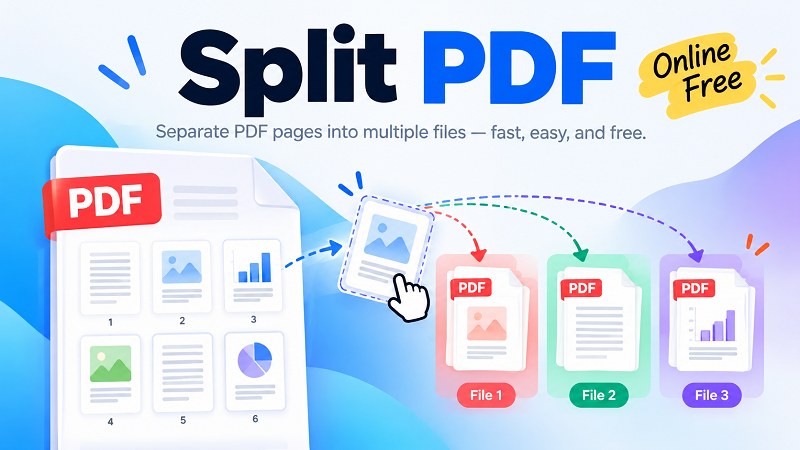
The workflow is simple and flexible. Start by selecting one or multiple PDF files from your device. Next, choose how many output files you want to create. Instead of forcing you into a rigid page range, JPDF lets you visually arrange your document. Drag and drop pages into the file where you want them to go, move pages between files, and build your new PDFs exactly the way you need them. When everything looks right, download the resulting files and you are done.
Split PDF Pages Without the Usual Hassle
Splitting a PDF should not feel like editing a complex document. JPDF keeps the process focused on the task that actually matters: deciding which pages belong together. If a document contains several sections, you can separate them into individual files. If you only need selected pages, you can move those pages into a new PDF while leaving the rest behind. This makes the tool useful for reports, applications, invoices, presentations, manuals, contracts, study materials, scanned documents, and all kinds of everyday PDFs.
Working with multiple files is where the visual workflow really shines. You can select several PDFs at once and organize their pages into the output files you need. Rather than repeatedly splitting one document, downloading it, opening another tool, and starting over, you can arrange everything in one place. It is a practical approach when a project involves several source documents and you want a clean set of final files.
A More Flexible Way to Separate PDF Documents
Traditional PDF splitters often revolve around page numbers: enter a range, click a button, and hope the result is what you expected. That works for straightforward documents, but real-world files are not always that tidy. You may want pages 1, 4, and 9 in one file, pages 2 through 5 in another, and the remaining pages somewhere else. With JPDF, you can visually control that structure by dragging pages into their destination files.
This approach also makes it easier to spot mistakes before you download anything. You can see how your pages are organized and adjust the arrangement as needed. Need another output file? Add one. Put a page in the wrong place? Move it. Want to reorganize the document before splitting it? Just drag and drop. The goal is to give you control without making the interface feel complicated.
Split PDF Online and Keep Things Moving
There is no reason to turn a quick PDF task into a full afternoon project. JPDF is designed for people who want to get in, organize their pages, and get out. The browser-based workflow means you can work with your documents without installing desktop PDF software or learning a complicated editing suite. Whether you are preparing files for work, submitting documents online, organizing school materials, or simply cleaning up a folder full of oversized PDFs, the process stays fast and straightforward.
If you have been looking for a free PDF splitter that gives you more control than simply entering page ranges, JPDF offers a different approach. Select your files, choose the number of documents you want to create, arrange the pages with drag and drop, and download the finished PDFs. No unnecessary detours—just a clean way to separate the pages you need and turn one large PDF into a set of organized documents.
Turn One PDF Into Exactly What You Need
A good PDF tool should adapt to the document, not the other way around. Whether you are separating a few pages, creating several smaller documents, or combining pages from multiple source files into organized outputs, JPDF gives you a visual way to build the result. When the pages are where they belong, download your files and move on to the next task. Simple, flexible, and built for getting PDF work done without the extra drama.