You have a PDF open, and there it is: the exact image you need. Maybe it is a product photo, a company logo, a diagram, or a picture buried halfway through a report. You want the image, not another complicated file to manage.
- Two Ways to Get Images Out of a PDF
- Method 1: Extract an Existing Image from the PDF
- Method 2: Convert a PDF Page into an Image
- How to Choose the Right Method for Your PDF
- You Need a Product Photo, Logo, or Illustration
- You Need a Complete Page with Text and Graphics
- You Are Working with a Scanned PDF
- Why the Result Sometimes Looks Different from the PDF
- The Image Looks Blurry
- The Image Has Missing Edges or Unexpected Cropping
- The Text or Background Looks Different
- A Practical Workflow for Getting the Image You Actually Need
- Step 1: Identify the Desired Output
- Step 2: Inspect the Source PDF
- Step 3: Select the Output Format and Quality
- Step 4: Inspect the Final File Before Reusing It
- Make the Format Work for You, Not the Other Way Around
Here is where things get interesting. Getting an image out of a PDF can mean two very different things. You can extract an image that already exists inside the document, or you can convert an entire PDF page into an image file. Both approaches can work, but they solve different problems. Choose the wrong one, and you might end up with a blurry picture, unnecessary text baked into the image, or a file that looks nothing like what you expected.
Let's break down the difference and figure out which method actually fits your situation.
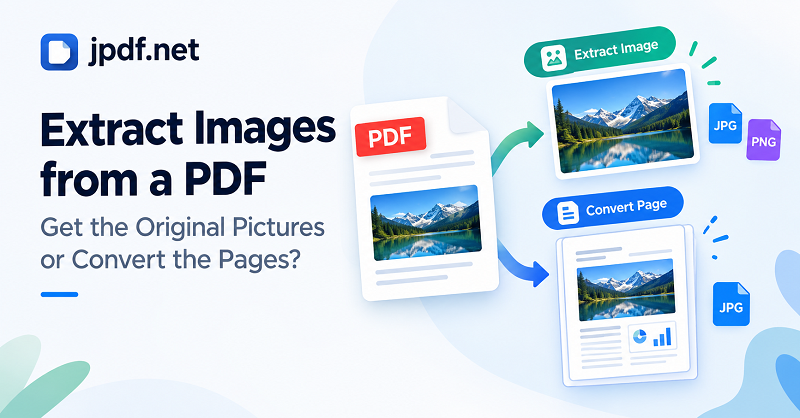
Two Ways to Get Images Out of a PDF
Before touching any conversion tool, identify what you want to preserve. Are you after one individual picture, or do you need the complete page exactly as it appears on your screen? That single distinction determines the best approach.
Method 1: Extract an Existing Image from the PDF
Some PDFs contain individual image objects embedded in the document. These might include photographs, illustrations, logos, product images, or other visual assets placed alongside text.
Extracting an embedded image means retrieving that image without treating the entire page as one big picture. If a product catalog contains a photograph next to a product name, for example, you may want the photograph alone for use in another document or design.
This approach is particularly useful when you need to reuse a visual element independently. You do not want page numbers, headings, captions, or neighboring content attached to it.
However, extraction has limits. The image stored inside a PDF may not match the exact appearance of the image as displayed on the page. It might have been cropped, masked, resized, or combined with other visual elements. Some PDFs also use vector graphics rather than ordinary embedded raster images. A PDF viewer's appearance is not always a reliable preview of what an extraction process will produce.
Method 2: Convert a PDF Page into an Image
Page conversion takes a different route. Instead of retrieving an individual image object, it renders the page as a visual image.
The output can include everything visible on that page: text, pictures, diagrams, borders, tables, and background elements. Think of it as capturing the page's complete visual composition rather than pulling out one component.
This method makes sense when the layout itself matters. You might need to share a designed page in a format that is easy to preview, insert a complete document page into a presentation, or preserve the relationship between text and graphics.
The trade-off is that the page becomes a single image. Text on the rendered page is no longer ordinary selectable text within that image, and individual pictures are not automatically separated into their own files.
If the whole page is what you need, a tool to convert pdf document to jpg can turn PDF pages into JPG images. If you need a standalone photograph or logo, however, extracting the underlying image is usually the more appropriate starting point.
How to Choose the Right Method for Your PDF
The fastest way to avoid wasted effort is to work backward from the result you want. Different documents contain different kinds of visual information, and not every image can be retrieved in the same way.
You Need a Product Photo, Logo, or Illustration
Start by checking whether the visual element exists as a separate image inside the PDF. This is often the best route when you want to reuse a photograph in a product listing, place a logo in a presentation, or incorporate an illustration into another design.
If the image is embedded independently, extraction may give you a cleaner starting point than converting the whole page. You can then inspect the resulting file and determine whether its dimensions and visual quality meet your needs.
There is one important catch: an image that looks sharp inside a PDF may have been enlarged, cropped, or otherwise adjusted for the page layout. Extraction does not guarantee that you will receive a larger or better-quality version than the one you see in the document.
You Need a Complete Page with Text and Graphics
Choose page conversion when the text, graphics, and layout need to stay together. This is useful for sharing a visual reference, inserting a designed page into a slide deck, or preparing a preview of a document page.
For example, imagine a report page containing a chart, a title, a legend, and several explanatory notes. Extracting only the chart would leave out information needed to understand it. Rendering the entire page preserves the visual relationship between those elements.
The output format matters, too. JPG is commonly used for photographs and general-purpose visual sharing. PNG can be a better choice for graphics with sharp edges, interface screenshots, or content where compression artifacts around text would be distracting. Neither format automatically guarantees perfect quality; the rendering resolution and source document also matter.
You Are Working with a Scanned PDF
Scanned documents require a different mindset. A scanned PDF page may consist largely or entirely of a photograph of a physical sheet. In that case, the picture of the page is not necessarily a collection of separate images waiting to be extracted.
If you need the complete scanned page, converting the page into an image is a straightforward option. If you need one photograph that appears within the scan, you may have to crop that region from the rendered page or use an image-editing tool.
Remember that cropping does not restore missing detail. If the original scan is low-resolution, the cropped image will still be limited by the information captured in the scan. Enlarging it may make the pixels more visible without recovering the details that were never recorded.
Why the Result Sometimes Looks Different from the PDF
A conversion or extraction process can produce an image that surprises you, even when the original document looks perfectly fine. The reason is that a PDF is more than a stack of pictures. It can contain text, vector graphics, raster images, transparency, clipping paths, and layout instructions that work together when a page is displayed.
The Image Looks Blurry
First, distinguish between an extracted image and a rendered page. An extracted image retains the limitations of the underlying image asset. A rendered page depends on the resolution used to generate the output.
If the image is intended for a small on-screen preview, moderate resolution may be sufficient. If it will be enlarged or displayed on a high-resolution screen, a higher rendering resolution may be necessary. Increasing the output resolution can improve how a page is rendered, but it cannot recreate fine details that are absent from the source.
The Image Has Missing Edges or Unexpected Cropping
PDFs can display only part of an embedded image through clipping or cropping instructions. An extraction tool may retrieve the underlying image, while a page converter renders only the portion visible in the document.
This difference is especially relevant when a photograph extends beyond its visible frame or when a design uses several overlapping elements. If you need the exact appearance of the published page, rendering the whole page may be more reliable than extracting an individual object.
The Text or Background Looks Different
Fonts, transparency, color handling, and rendering settings can affect the final appearance. A page containing small text may become harder to read when converted at insufficient resolution. A transparent graphic may also look different when placed against a new background.
For documents where appearance matters, inspect the output at its intended display size. Do not judge quality solely by how large the image looks when zoomed in or by the file extension.
A Practical Workflow for Getting the Image You Actually Need
Instead of repeatedly trying different conversion settings, follow a short decision process. It helps you avoid unnecessary work and makes it easier to spot quality problems before using the result elsewhere.
Step 1: Identify the Desired Output
Ask yourself one question: do you need an individual visual asset or the entire page?
If the answer is a photograph, logo, or illustration, investigate whether it can be extracted as a separate image. If you need the complete page with its text and layout intact, use page conversion instead.
Step 2: Inspect the Source PDF
Open the document and look closely at the visual element. Can you select it independently, or does it appear to be part of a scanned page? Does it have a visible crop, frame, or transparent background? These clues help you choose an appropriate method.
If the PDF is scanned, do not assume that every visible picture exists as an independent object. The page may simply be one large image.
Step 3: Select the Output Format and Quality
Choose JPG when you want a broadly compatible image for ordinary sharing or photographic content. Consider PNG when preserving sharp graphic edges and avoiding JPG compression artifacts is more important.
For full-page conversion, use a rendering resolution appropriate to the final use. A small thumbnail, a presentation slide, and a page intended for detailed inspection may need different output settings. Avoid enlarging files unnecessarily when the extra detail will not improve the actual result.
Step 4: Inspect the Final File Before Reusing It
Open the resulting image and check the details that matter for your task. Make sure the entire intended visual is present, important text remains legible, edges have not been unexpectedly cut off, and the image has an appropriate background.
If you extracted a photograph, check that it contains only the visual element you wanted. If you converted a complete page, verify that the layout and small text are still readable at the size where the image will be used.
This final inspection is worth the extra moment. A technically successful conversion is not necessarily a useful result.
Make the Format Work for You, Not the Other Way Around
Extracting an image from a PDF and converting a PDF page into an image may sound like interchangeable tasks, but they are not. One focuses on retrieving an individual visual asset; the other preserves an entire page as a rendered image.
When you need a standalone photograph, logo, or illustration, begin with image extraction. When the page's text, graphics, and layout belong together, convert the complete page. For scanned documents, consider whether you need the entire scan or only a cropped portion.
Once you understand that distinction, choosing the right workflow becomes much easier. You spend less time experimenting with the wrong tools and more time getting an image that is ready for its intended use.