A supplier sends you a polished PDF catalog with dozens of products. The product photos look great, the specifications are all there, and the pricing information is neatly organized. Then you open your online store and realize none of those pages is ready to become a product listing.
- Start With the Product Listing, Not the PDF
- Match Catalog Pages to Product SKUs
- Decide Whether You Need a Page Image or an Individual Product Image
- Choose the Right Way to Get Images Out of a PDF
- Method 1: Convert a PDF Page to PNG
- Method 2: Extract an Embedded Product Image
- Method 3: Return to the Original Asset Source
- Make the Images Ready for Your Store
- Check Sharpness, Cropping, and Product Accuracy
- Standardize Dimensions Without Stretching the Product
- Keep Product Information and Visuals in Sync
- Build a Repeatable Catalog-to-Listing Workflow
- Step 1: Create a Product Asset Inventory
- Step 2: Select the Appropriate Extraction Method
- Step 3: Convert and Review a Small Sample
- Step 4: Name and Organize the Output Files
- Step 5: Complete a Final Publishing Check
- Common Mistakes to Avoid
- Turn Existing Catalogs Into Useful Product Assets
Welcome to the catalog-to-commerce headache.
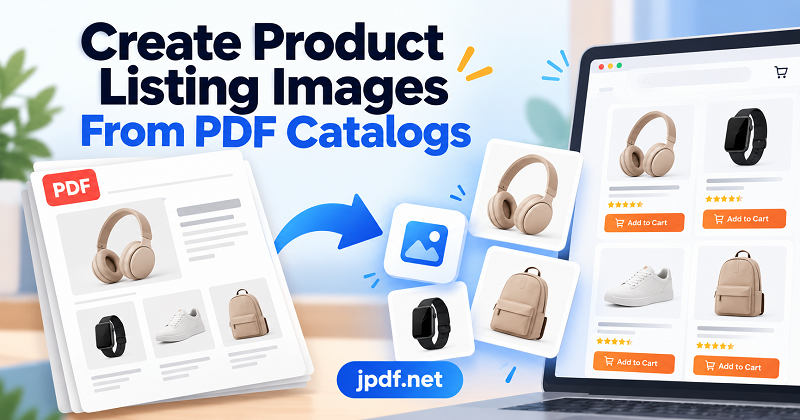
Product catalogs are designed to present information on a page, not necessarily to supply individual images for an online store. A single page might contain four product photos, promotional badges, technical specifications, and a company logo. Uploading the entire page as a product image would be awkward, while rebuilding every visual from scratch wastes time you could spend managing your store.
The smarter approach is to treat the catalog as a source of product assets. Once you understand what you need to extract, which conversion method fits the job, and how to verify the results, you can turn existing catalog content into useful listing images without creating a mess of mismatched files.
Start With the Product Listing, Not the PDF
Before converting anything, figure out what each product listing actually needs. This simple step prevents a common mistake: converting every catalog page into an image and hoping the results will somehow fit your store.
An online listing may require a clean product photo, an image showing packaging details, a diagram with dimensions, or a supporting visual that explains a product feature. Those assets serve different purposes, so they should not automatically come from the same conversion process.
Match Catalog Pages to Product SKUs
Start by identifying the products you intend to publish. Record each product's SKU, catalog page, product name, and required image type. If the supplier offers several sizes, colors, or packaging variations, make sure the image corresponds to the correct version.
For example, a catalog page might display three packages of the same snack in different sizes. Extracting the wrong package image could leave you with a technically attractive picture that misrepresents the item customers can actually purchase.
A simple asset checklist can help:
- Product SKU and official product name
- Relevant catalog page or pages
- Required primary and secondary images
- Packaging or variant details that must remain visible
- Source catalog version and date, when available
This is especially useful when several people handle product uploads or when a supplier regularly updates its catalog.
Decide Whether You Need a Page Image or an Individual Product Image
These are two different jobs, and confusing them can waste a surprising amount of time.
A page image is a rasterized version of an entire PDF page. It preserves the overall layout, including multiple products, text, decorative elements, and other page content. An individual product image, by contrast, contains only the relevant visual asset.
If you want to reuse a product photograph from a crowded catalog page, converting the entire page is only the first step. You will still need to crop the photograph or extract the original embedded image, depending on what the PDF contains.
If the supplier can provide original product photography, transparent PNG files, or a dedicated image pack, ask for those assets first. A PDF is often a convenient source, but it is not automatically the best-quality source.
Choose the Right Way to Get Images Out of a PDF
There is no single conversion method that works best for every catalog. The right choice depends on how the PDF was created and what the finished image needs to accomplish.
Method 1: Convert a PDF Page to PNG
Converting a page to PNG is useful when you need to preserve a catalog layout, create a reference image, or capture a product diagram that combines graphics and labels.
A browser-based pdf to png converter free can turn a selected PDF page into a PNG image. Open the catalog, identify the relevant page, convert it, and inspect the resulting image before using it in your workflow.
This method works well for page-level visuals, infographics, charts, and diagrams. It is less suitable when the page contains several unrelated products and you need a separate image for each SKU.
One important detail: the exported image represents the page, not necessarily the individual product photograph. You may need to crop the relevant area afterward, and the quality of small text or fine product details depends on the rendering resolution.
Method 2: Extract an Embedded Product Image
Some PDF catalogs contain individual photographs embedded as image objects. In those cases, extracting the original image may produce a cleaner result than rendering an entire page and cropping it.
Extraction is particularly useful when the catalog places a product photograph beside specifications or promotional text. You can retrieve the photograph without carrying those surrounding elements into your listing image.
However, not every PDF stores images in a convenient, reusable form. Some catalogs flatten their pages into large images, use clipping masks, or combine several visual elements into a single composition. If the photograph cannot be extracted cleanly, page conversion followed by careful cropping may be the more practical option.
Method 3: Return to the Original Asset Source
When product imagery must be exceptionally sharp, consistent, or suitable for multiple output sizes, the original asset is often the best starting point.
Ask the supplier for original photography, a product image library, or files associated with the relevant SKUs. This is especially important for packaging-heavy products, where small differences in labels, ingredients, sizes, or product variants matter.
Do not assume that an image displayed in a PDF has the same resolution as the original photograph. A catalog may use downsampled images to keep the document compact, so enlarging the extracted image will not restore detail that is no longer present.
Make the Images Ready for Your Store
Getting an image out of a PDF is only half the job. Before publishing, make sure it works as a product asset rather than simply looking acceptable inside a document.
Check Sharpness, Cropping, and Product Accuracy
Open each converted image at a useful viewing size. Look for blurry edges, unreadable labels, unexpected white margins, clipped packaging, and promotional text that should not appear in the product photo.
Pay particular attention to product variants. Two packages may look almost identical at thumbnail size but have different quantities, flavors, dimensions, or labeling. Check the source catalog rather than relying on visual similarity alone.
If the image includes text or technical details that customers need to read, confirm that those details remain legible at the intended display size. A large export does not guarantee a sharp result if the source artwork was already low resolution.
Standardize Dimensions Without Stretching the Product
Different marketplaces and store themes may have different image requirements. Check the specifications for your intended platform before creating a batch of files.
A consistent canvas size and background can make a product grid look more professional. However, standardization should not distort the product itself. Preserve its proportions, avoid stretching, and use appropriate padding when a photo has a different aspect ratio from the target canvas.
If the source image is too small, do not expect resizing alone to produce extra detail. Request a better source image when quality is insufficient.
Keep Product Information and Visuals in Sync
An attractive image can still cause problems if it belongs to an outdated catalog. Packaging, product names, quantities, and specifications may change between supplier revisions.
Before uploading, compare the selected image with the current product record. Remove obsolete promotional badges when appropriate, and never edit an image in a way that misrepresents the actual product.
Also confirm that you have permission to reuse supplier photography for your intended sales channels. Having access to a catalog does not automatically establish every right needed to republish its images.
Build a Repeatable Catalog-to-Listing Workflow
If you manage dozens or hundreds of products, converting files one at a time without a naming or review system quickly becomes chaotic. A repeatable workflow makes the process easier to audit and update.
Step 1: Create a Product Asset Inventory
List the products you need to publish and map each one to its source page, SKU, and required image types. This creates a clear connection between the supplier's catalog and your store's product records.
Step 2: Select the Appropriate Extraction Method
Use page conversion when the whole page or a page-level diagram is the intended output. Use image extraction when you need a standalone photograph and the PDF makes that possible. Request original files when source quality or product accuracy is insufficient.
Step 3: Convert and Review a Small Sample
Before processing an entire catalog, test a few representative products. Include a simple product photo, a crowded catalog page, and any difficult packaging or diagram examples.
Check image quality, cropping, file format, and the amount of manual cleanup required. A small test run helps reveal problems before they spread across your entire product library.
Step 4: Name and Organize the Output Files
Use predictable filenames that connect the image to the correct product. For example, SKU123-main.png and SKU123-packaging.png are easier to manage than filenames such as page-04-final-new.png.
Keep the original catalog separate from converted assets. If the supplier releases a revised version, you will be able to identify which source file was used and determine which images need to be updated.
Step 5: Complete a Final Publishing Check
Before uploading, verify that each file matches the intended SKU, meets the platform's requirements, and accurately represents the product. Check for duplicates, missing variants, outdated packaging, and images that accidentally include unrelated catalog content.
This final review is worth the effort. Correcting an image before publication is generally easier than discovering the wrong product photo after a listing is already live.
Common Mistakes to Avoid
Several small mistakes can undermine an otherwise efficient workflow.
Converting every page without checking its contents: A page may contain multiple products, pricing tables, or promotional material that does not belong in an individual listing.
Assuming PNG automatically means high quality: PNG is a file format, not a guarantee of resolution. A low-quality source will remain limited after conversion.
Cropping too tightly: Cutting off packaging edges, product labels, or essential visual details can make a listing misleading.
Mixing product variants: Similar-looking products can have different sizes or specifications. Use SKU-level checks rather than relying on filenames or memory.
Ignoring image permissions: Confirm that supplier images can be reused for your intended commercial purpose.
Overwriting source files: Preserve the original catalog and maintain a clear separation between source documents and production-ready images. This makes future updates much easier.
Turn Existing Catalogs Into Useful Product Assets
A PDF product catalog can be a practical starting point for building an online store's image library, but the best workflow is not simply to convert everything and upload the results. Start with the products you need, identify the right visual assets, choose between page conversion and image extraction, and check every output against the actual product information.
For a small batch of products, a quick conversion and manual review may be enough. For a large catalog, SKU mapping, consistent filenames, and a repeatable quality check will save far more time than trying to fix a disorganized image library later.
The goal is simple: turn existing product information into useful, accurate, and consistent listing assets without sacrificing image quality or creating extra work for your team.