You’ve got a report in A4, a few invoices in US Letter, a landscape spreadsheet, and a scanned document that seems to have a size of its own. Everything looks fine when opened separately. But once you put all those files together, the result can look like a collection of documents that were never meant to meet.
- Before You Merge Everything, Think About the Final Result
- What Happens When Different Page Sizes Come Together?
- Four Ways to Handle a Mixed-Size PDF Collection
- 1. Keep the Original Page Dimensions
- 2. Standardize Everything to A4 or Letter
- 3. Preserve Landscape Pages Where They Make Sense
- 4. Resize Only the Pages That Actually Need It
- A Print-Readiness Test: Five Things Worth Checking
- The Smart Order for Preparing and Combining PDF Files
- One Organized PDF Is Better Than a Folder Full of Attachments
The good news? Different page sizes don't automatically make a PDF unusable. In fact, a single PDF can contain pages with different dimensions and orientations without any problem. The real challenge is deciding what should stay as it is and what needs adjusting, especially when the finished document is going to be printed, shared with a client, or submitted as part of an official package.
Instead of resizing everything and hoping for the best, take a more deliberate approach. A few smart decisions before combining your files can save you from awkward layouts, unreadable text, and a surprisingly expensive stack of misprinted pages.
Before You Merge Everything, Think About the Final Result
Not every PDF needs to look identical from the first page to the last. The right setup depends on what you're trying to accomplish. If you're putting together reference materials for internal use, keeping the original page dimensions is often perfectly reasonable. A landscape chart can remain landscape, and a scanned receipt doesn't necessarily need to be stretched into an A4 page just to match the rest.
Printing changes the equation. If your goal is to produce a physical document that can be handled like a regular report, consistency becomes much more important. Pages with unusual dimensions may be automatically scaled by the printer, leaving some content smaller than expected. In other cases, the printer may crop parts of a page if the selected paper size and print settings don't match.
Think about the person who will actually use the finished file. Will they read it on a laptop? Print it at an office? Send it to a government agency? Each situation calls for a slightly different approach. The goal isn't to make every page identical at all costs. It's to make the entire document comfortable and practical to use.
What Happens When Different Page Sizes Come Together?
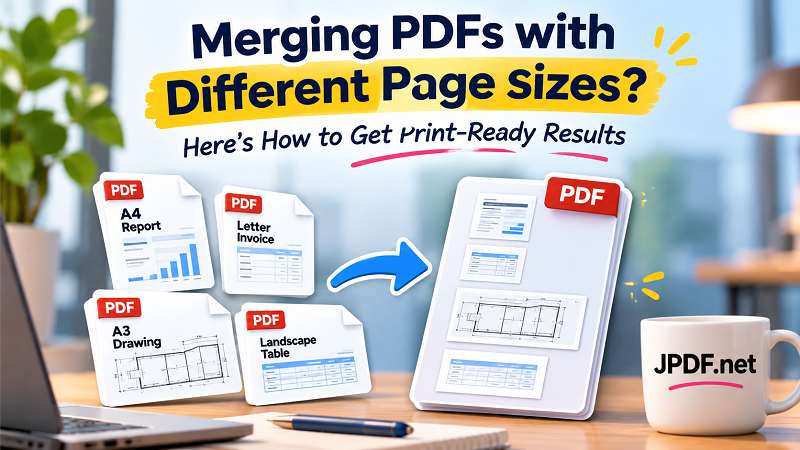
PDF pages have their own dimensions. Combining several documents doesn't necessarily change those dimensions, which means the final file can contain a mixture of A4, Letter, A3, and custom-sized pages.
Here's what that might look like in a typical business document:
| Source document | Original format | Potential issue |
|---|---|---|
| Business report | A4 portrait | Usually straightforward to print |
| US invoice | Letter portrait | Slight size difference |
| Technical drawing | A3 landscape | May require larger paper |
| Scanned receipt | Custom dimensions | Could appear unusually small |
| Financial spreadsheet | A4 landscape | Needs the correct print orientation |
This isn't necessarily a formatting mistake. It's simply the result of combining materials created for different purposes. Problems tend to appear when someone expects the final PDF to behave like a uniform stack of A4 sheets.
For example, a wide financial spreadsheet may become difficult to read if it's forced into portrait orientation. A technical drawing reduced to fit a standard office printer might lose the detail that makes it useful. And a small receipt enlarged to fill an entire page can look unnecessarily blurry.
Before changing anything, inspect the original files. Knowing which pages are naturally large, small, portrait, or landscape makes it much easier to choose the right final layout.
Four Ways to Handle a Mixed-Size PDF Collection
There's no universal setting that works for every document. The following approaches cover the situations you're most likely to encounter.
1. Keep the Original Page Dimensions
If preserving the original appearance is your priority, leave the page sizes untouched. This works particularly well for archival records, technical documentation, contracts, and collections of supporting documents.
The advantage is simple: you avoid unnecessary resizing. A drawing stays at its intended dimensions, and a scanned document retains its original proportions. Readers can still navigate everything within one PDF without forcing every page into the same physical format.
The trade-off is that printing may require different paper sizes or individual scaling settings. That's not a deal-breaker, but it's worth telling anyone who receives the document.
2. Standardize Everything to A4 or Letter
For everyday office documents, a consistent page size can make a big difference. If the PDF is going to be printed on a standard office printer, converting suitable pages to A4 or US Letter can make the final result easier to handle.
However, don't confuse standardization with simply stretching every page until it fills the paper. That can distort images, change proportions, and make some content difficult to read. A better approach is to scale each page proportionally and use margins where necessary.
Pay particular attention to wide tables, diagrams, and spreadsheets. They may need landscape orientation rather than being squeezed into a portrait layout.
3. Preserve Landscape Pages Where They Make Sense
Some content is naturally horizontal. Financial statements, comparison tables, engineering drawings, and wide charts often become less useful when forced into portrait format.
If a document contains only a few landscape pages, there's little reason to change the entire collection. Keeping those pages in their original orientation may produce a much better reading experience.
Just remember that the printer needs to recognize the page orientation. Check the print preview before sending a large document to the printer, particularly when portrait and landscape pages appear together.
4. Resize Only the Pages That Actually Need It
This is often the most practical solution for mixed business documents. Rather than changing everything, identify the pages that create problems and adjust those individually.
A scanned receipt might need to be placed on a standard-sized page for easier printing. A wide chart may need a landscape layout. Meanwhile, a regular A4 report can remain exactly as it is.
Selective adjustment takes a little more preparation, but it avoids unnecessary changes to pages that are already perfectly fine. That's especially useful when accuracy matters more than making the document look uniform.
A Print-Readiness Test: Five Things Worth Checking
Before calling your PDF finished, give it a quick visual inspection. Don't rely entirely on the thumbnail preview or assume that a successful file export means everything is ready.
- Check the page boundaries. Look for text, tables, or images sitting too close to the edges. Content that appears fine on screen might get clipped when printed, especially if the printer has non-printable margins.
- Check text readability. A page that has been reduced to fit a smaller paper size may technically contain all its original content, but that doesn't mean anyone can comfortably read it. Pay special attention to footnotes, spreadsheet figures, and small labels.
- Check orientation. Landscape pages should remain easy to view. If a page appears sideways or requires awkward rotation, fix the orientation before distributing the document.
- Check image quality. Resizing a page doesn't automatically improve the resolution of a scanned image. If a receipt, photograph, or diagram already looks blurry, making it larger won't magically restore the missing detail.
- Check the actual print preview. Select the paper size you intend to use and review the output. Options such as Fit, Actual Size, and Shrink Oversized Pages can produce noticeably different results. Choose the setting that preserves the information you need rather than blindly accepting the default.
One more thing: if the documents contain digital signatures, interactive forms, or important internal links, verify those separately. Creating a combined PDF can affect certain interactive features or invalidate existing digital signatures. Never assume that a visually correct document is automatically a technically identical one.
The Smart Order for Preparing and Combining PDF Files
A little organization goes a long way, particularly when you're dealing with more than two or three files. Here's a practical workflow that avoids most of the usual headaches.
Start by gathering all the source PDFs in one folder. Give them recognizable filenames so you don't end up guessing which version is the final report or which invoice belongs at the beginning of the package. Next, decide the reading order. For a business submission, that might mean a cover page, main report, supporting invoices, and additional evidence.
Then review the page dimensions and orientations. You don't need to resize every document, but you should know which pages might behave differently when printed. Make any necessary adjustments to those specific files before combining them.
Once everything is ready, use a PDF merging tool to bring the documents together. With JPDF, you can merge all pdfs into one file through an online workflow without installing desktop software or creating an account. It's a straightforward option when you simply need to consolidate separate PDF documents.
After merging, open the resulting file and scroll through it from beginning to end. Check the order, page appearance, and any special elements that matter to your workflow. If the document is intended for printing, run through the print-readiness checks one final time.
One Organized PDF Is Better Than a Folder Full of Attachments
Combining documents isn't just about reducing the number of files you have to send. It's about making information easier to access, review, store, and share. A well-prepared PDF gives the recipient one clear document instead of a collection of separate attachments that need to be opened and arranged manually.
You don't need to force every page into the same dimensions to achieve that. Preserve the original format when accuracy matters, standardize pages when printing requires consistency, and adjust only the sections that genuinely need attention.
The best final PDF isn't necessarily the one where every page looks identical. It's the one where every page is easy to read, contains the information it should, and works for the person receiving it.
Get your files organized, choose the right page settings, and let JPDF handle the merging. No complicated setup, no account registration, just a simpler way to bring your PDF documents together.