You find the section you need in a report. The table of contents says it starts on page 87, so you open your PDF tool, enter 87, and extract the pages. Simple enough, right? Except the resulting file starts with the wrong section.
- Why One PDF Can Have Two Different Page Numbers
- Three Situations Where Page Number Confusion Causes Real Problems
- Extracting a Chapter From a Long Report
- Preparing Contract Sections and Supporting Documents
- Sharing Selected Pages From Textbooks and Training Materials
- A Better Way to Identify the Pages Before Extracting Them
- Build a Clean PDF Without Losing Important Pages
- The Final Check: Make Sure Your Extracted PDF Is Complete
Here's the catch: the page number printed on a document isn't always the same as the page number counted by your PDF viewer. A report might have a cover, an introduction, several pages of Roman numerals, and then a main section that starts again at page 1. Your PDF reader, meanwhile, simply counts the pages in the file unless the document uses a custom page-label system.
This small mismatch can turn a straightforward task into an annoying round of trial and error. If you're extracting a chapter, preparing a contract attachment, or sharing selected pages with a colleague, knowing which numbering system you're looking at can save you from sending the wrong document.
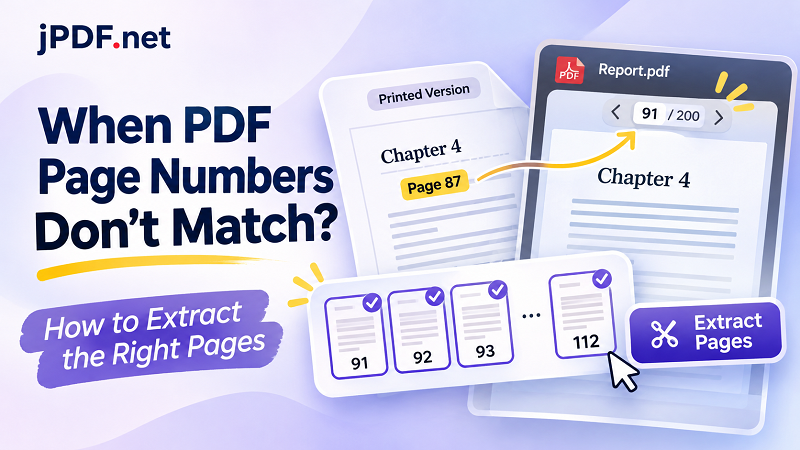
Why One PDF Can Have Two Different Page Numbers
Think of a printed document and its digital file as two systems keeping track of the same pages in different ways.
A printed book or report uses page numbers chosen by its author or publisher. These numbers are part of the document's design. The cover may have no number, the introduction might use Roman numerals such as i, ii, and iii, and the main content may begin at page 1.
A PDF viewer has a different job. It needs to know where each page sits inside the file, so it typically counts from the first page: 1, 2, 3, 4, and so on. Some PDF files also contain custom page labels that allow the viewer to display the document's original numbering, but not every file includes this information.
Here's a practical example:
| Document section | Printed page number | PDF viewer page |
|---|---|---|
| Cover | No number | 1 |
| Table of contents | i | 2 |
| Introduction | ii | 3 |
| Main content, first page | 1 | 5 |
| Main content, page 87 | 87 | 91 |
| Appendix | A-1 | 145 |
In this example, someone looking for printed page 87 needs PDF viewer page 91. Entering 87 into a page extraction tool would select an entirely different page.
The difference becomes even more noticeable in scanned books, academic papers, annual reports, and documents assembled from several sources. Some files contain inserted pages, blank dividers, or separately numbered attachments. The viewer doesn't necessarily know what those pages mean in the context of the original document.
Three Situations Where Page Number Confusion Causes Real Problems
Extracting a Chapter From a Long Report
Imagine you're preparing a presentation and only need chapter four of a 200-page market research report. The table of contents identifies the chapter as pages 87–112, but the PDF includes several introductory pages that aren't part of the printed numbering.
If you extract pages 87–112 based on the viewer's counter, you may cut off the beginning of the chapter and include unrelated material at the end. That's more than a cosmetic issue. A missing chart, footnote, or explanatory paragraph can make the extracted section difficult to understand.
The smarter approach is to locate the actual chapter boundaries in the PDF first. Use the section heading to confirm the starting page, then find the final heading or content that belongs to that chapter. Don't rely on the table of contents alone.
Preparing Contract Sections and Supporting Documents
Legal and administrative documents often combine several numbering styles. A contract might have numbered clauses, separately numbered schedules, and appendices labeled A, B, and C. The page reference in an email or printed document may refer to one numbering system while your PDF tool expects another.
This is where careless extraction can cause confusion. You might send a contract without the referenced schedule or include an outdated attachment because you selected the wrong range.
Before extracting anything, identify the document's structure. Check the clause or appendix title, confirm the surrounding pages, and make sure the final PDF contains every page needed to interpret the selected section. For important legal records, verify the extracted copy against the original before sharing it.
Sharing Selected Pages From Textbooks and Training Materials
Students, teachers, and trainers frequently need to share only a few pages rather than an entire textbook or training manual. A reading assignment might refer to pages 42–55, but the PDF viewer could show a different range because the file includes a title page, copyright information, and a contents section.
There's another detail worth watching: useful content doesn't always stop exactly where the printed page range ends. An exercise may continue onto the next page, or a diagram might appear on a separate sheet.
Check the surrounding content before exporting. A few extra seconds spent reviewing the first and last pages can prevent an incomplete reading pack or a confusing set of study materials.
A Better Way to Identify the Pages Before Extracting Them
You don't need a complicated workflow to get this right. You just need to stop treating every page number as interchangeable.
Start with the document's table of contents or the section heading you're looking for. Identify the printed page number, then locate the corresponding content inside the PDF. If the document has bookmarks, use them. Many professionally prepared PDFs include a navigation panel that lets you jump directly to chapters and subsections without manually scrolling through every page.
Once you reach the correct section, pay attention to the page counter in your PDF reader. This is usually the number you'll need when working with a tool that selects pages by their position in the file.
For documents without bookmarks, use the search function to find a distinctive chapter title, heading, or phrase. Searching for a unique phrase is often faster than scrolling through dozens of pages. Just remember that text search may not work on scanned PDFs unless they have undergone optical character recognition (OCR).
Before moving on, verify three things:
- The first page contains the correct section title or opening content.
- The last page includes the complete ending of the section.
- Any tables, diagrams, footnotes, or continuation pages are included.
This quick check is particularly useful when working with long reports or documents containing multiple attachments.
Build a Clean PDF Without Losing Important Pages
Once you've identified the correct pages, the actual extraction is straightforward. The important part is choosing a workflow that matches how the document is organized.
For a simple document, you may only need one continuous page range. For a more complicated file, you might want several separate groups, such as a main chapter, an appendix, and a collection of reference pages.
A practical workflow looks like this:
- Open the original PDF and locate the section you want to extract.
- Record the actual PDF viewer page numbers, not just the printed numbers.
- Decide whether you need one continuous range or several separate page groups.
- Arrange the selected pages in the intended reading order.
- Export the new document and inspect its contents before sharing it.
If you're working with several non-consecutive sections, manually copying pages into separate documents can quickly become tedious. A dedicated PDF splitting tool makes the process easier to manage. With split pdf document online, you can organize selected pages into separate files without having to rebuild the entire document from scratch.
The key is to work from verified page positions. A splitting tool can handle the selection and export, but it can't automatically know which printed chapter or appendix you intended to keep. That decision still needs to come from the person who understands the document.
The Final Check: Make Sure Your Extracted PDF Is Complete
A successful export doesn't automatically mean you've got the right file. Before sending or archiving it, open the newly created PDF and review it from beginning to end.
Check the opening page first. Does it start with the section you intended to keep, or does it contain an unrelated page? Then inspect the ending. If the final paragraph is cut off or a table continues onto another page, you may need to adjust the selected range.
It's also worth checking the page order. When several separate sections are combined, the exported document should follow a logical sequence. A misplaced appendix or reference page can make an otherwise correct PDF harder to use.
For business documents, contracts, and reports, compare the extracted version against the original before distributing it. Keep the original file untouched so you can return to it if something is missing.
A good extracted PDF should feel like a complete document in its own right. Someone opening it for the first time shouldn't have to guess what came before it or wonder whether an important page was left behind.