You spend an hour putting together a polished proposal. The fonts look right, the tables line up perfectly, the spacing is clean, and every page looks exactly the way you want. You export it as a PDF, send it to your client, and move on with your day.
- A PDF Isn't Quite as Universal as You Think
- Four Reasons Your PDF Changes When Someone Else Opens It
- 1. Your Fonts Aren't Actually Inside the PDF
- 2. Different PDF Viewers Interpret Certain Elements Differently
- 3. Special Characters Turn Into Boxes or Strange Symbols
- 4. Transparency, Colors, and Graphics Don't Always Behave as Expected
- Troubleshooting: What Should You Check First?
- A Practical Pre-Delivery Check for Important PDFs
- When Your PDF Package Contains Multiple Supporting Documents
- Make Sure Your PDF Is Ready for Someone Else's Screen
Then comes the message: "Hey, something looks weird in your document."
You open the same file on your computer. Everything looks fine. Your client opens it again. Still broken.
Welcome to one of the most frustrating PDF problems: a document that looks completely different depending on where it's opened. And no, it doesn't necessarily mean someone messed with your file.
PDFs are designed to preserve document layouts, but that doesn't mean every device, application, or operating system will render them identically. Let's look at what's actually happening and, more importantly, how to stop it before your next important document goes out.
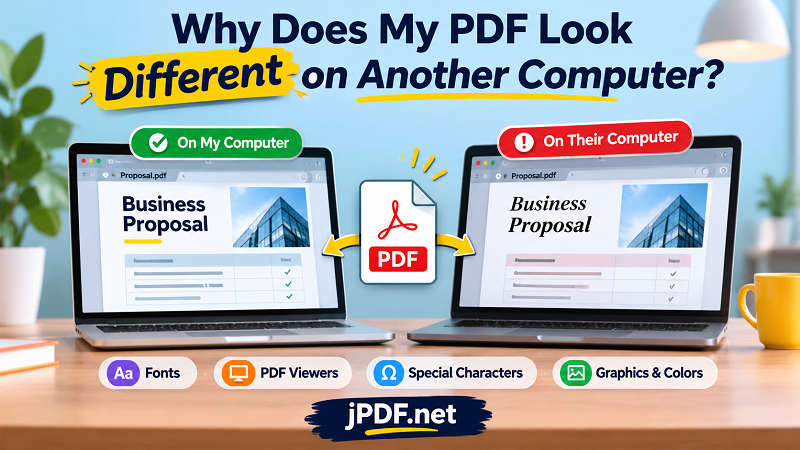
A PDF Isn't Quite as Universal as You Think
PDF stands for Portable Document Format, and portability is pretty much its whole reason for existing. Unlike a Word document, a PDF is supposed to preserve the arrangement of text, images, graphics, and other elements regardless of the device.
But there's a difference between preserving document information and displaying every element exactly the same way.
Your computer uses a PDF viewer to interpret the file and turn its contents into something you can see. Adobe Acrobat, Chrome, Edge, Preview on macOS, and other PDF applications don't necessarily use identical rendering engines or handle every feature in precisely the same way.
Add different operating systems, missing fonts, outdated software, and display settings to the mix, and things can get messy.
The good news? Most PDF display problems have identifiable causes. You just need to know where to look.
Four Reasons Your PDF Changes When Someone Else Opens It
1. Your Fonts Aren't Actually Inside the PDF
This is one of the biggest troublemakers.
When you create a document using a particular font, your computer already has that font installed. Everything looks great because the system knows exactly how to display it.
However, if the font isn't embedded in the exported PDF, another computer may not have access to it. The PDF viewer then tries to substitute a different font.
And that's where the domino effect begins.
A replacement font might be slightly wider, taller, or simply designed differently. A heading that originally fit on one line suddenly wraps onto two. Paragraphs become longer. Tables shift. In some cases, text can even overlap other elements.
How to check: Open your PDF in Adobe Acrobat Reader and look at the document's font properties. In Acrobat, you can usually find this under File > Properties > Fonts. Look for font entries marked as Embedded or Embedded Subset.
If important fonts aren't embedded, revisit your original document and export it again using an option that includes font embedding.
2. Different PDF Viewers Interpret Certain Elements Differently
Not all PDF viewers play by exactly the same rules.
One application may display a transparent graphic beautifully, while another shows an unexpected background. A form field might behave differently. Certain advanced effects, layers, or annotations may also appear inconsistent.
This doesn't automatically mean the PDF is corrupted. Sometimes the viewer simply handles a particular PDF feature differently.
For example, opening the same file in Chrome and Adobe Acrobat may produce slightly different results, especially when the document contains complex graphics, transparency, interactive elements, or unusual fonts.
How to check: Open the file in at least two different PDF viewers. If the problem only appears in one application, the viewer itself may be responsible.
Try updating that application before changing the original document. There's no point rebuilding an entire proposal because one PDF viewer is having a bad day.
3. Special Characters Turn Into Boxes or Strange Symbols
Ever opened a document and found that a bullet point became a square, an accented character disappeared, or a symbol turned into something completely unexpected?
This is often a font encoding or character support issue.
Some fonts don't contain every Unicode character. Others may contain the required glyphs but fail to display them correctly when the font information isn't embedded or encoded properly.
This becomes particularly annoying in documents containing multiple languages, mathematical symbols, currency signs, technical notation, or less common punctuation.
For instance, a report containing the euro symbol, trademark symbols, accented names, and mathematical expressions may look perfectly normal on the creator's computer but display missing characters elsewhere.
How to check: Inspect the affected text in your original document. Try using a font with broader character coverage, make sure the necessary fonts are embedded, and export the PDF again.
If the characters are already missing in the exported file, simply opening it with another viewer may not fix the underlying problem.
4. Transparency, Colors, and Graphics Don't Always Behave as Expected
PDFs can contain more than ordinary text and pictures. They may also include transparency effects, vector illustrations, layered graphics, gradients, and color information.
These elements can behave differently depending on the viewer, rendering settings, and output environment.
A transparent logo might appear with a white background. A shadow could look darker than expected. A gradient may appear slightly different, or a graphic could show unexpected edges.
Color differences are especially noticeable when moving between devices with different display characteristics. A bright blue on one monitor might look noticeably duller on another.
How to check: Pay close attention to transparent images, overlapping objects, gradients, and logos. If you're preparing a document for professional printing, also check the intended color output rather than relying entirely on how it looks on your monitor.
Troubleshooting: What Should You Check First?
Don't start changing random settings. Identify the symptom first, then investigate the most likely cause.
| What you see | Possible cause | What to check |
|---|---|---|
| Fonts look different | Missing embedded fonts | PDF font properties |
| Text overlaps or moves | Font substitution or rendering differences | Original fonts and PDF viewer |
| Symbols become boxes | Character encoding or missing glyphs | Unicode support and font embedding |
| Transparent images have backgrounds | Transparency handling | Original image and viewer |
| Colors look different | Display or color profile differences | Color settings and output device |
| Graphics look distorted | Rendering or compatibility issue | Another PDF viewer |
One useful rule: if the problem appears in multiple PDF viewers, investigate the PDF itself. If it only happens in one application, check that application's version and rendering behavior first.
A Practical Pre-Delivery Check for Important PDFs
Here's something worth doing before sending a contract, proposal, invoice, presentation, or any document that represents your business.
Instead of waiting for someone to report a problem, run through this quick inspection.
- Check the fonts. Make sure important fonts are embedded. Pay special attention to custom fonts and documents containing multiple languages.
- Inspect every page. Don't just look at the first page and assume the rest are fine. Tables, footnotes, page numbers, and headers can behave differently throughout a document.
- Look for missing characters. Search for currency symbols, bullet points, accented letters, mathematical notation, and special punctuation.
- Test another viewer. Open the exported file in a different PDF application. This is a simple way to catch rendering differences before someone else does.
- Check images and graphics. Make sure logos, transparent PNGs, diagrams, and other visual elements look as intended.
- Keep the original source file. If something needs fixing, having the editable original saves you from rebuilding the document from scratch.
For high-stakes documents, consider checking the final PDF on another computer as well. A quick five-minute inspection is much cheaper than explaining to a client why the proposal they received looks nothing like the one you approved.
When Your PDF Package Contains Multiple Supporting Documents
There's another problem that often gets overlooked: document organization.
Imagine sending a client a proposal, pricing sheet, product specifications, and supporting documents. Every file looks perfectly fine on its own, but the recipient now has four separate attachments to download, open, and keep track of.
It's not exactly a smooth experience.
When those documents belong together, putting them into one organized PDF can make the handoff much easier. You can arrange the pages in a logical order, create a single file, and reduce the chance of someone overlooking an important attachment.
For this kind of task, jPDF.net offers a straightforward way to combine pdf to pdf without installing desktop software. You can bring multiple PDF files together into one document and prepare a more organized package for sharing.
Just remember that combining files doesn't automatically repair missing fonts, incorrect formatting, or damaged graphics. If one of your source PDFs already has a display problem, check and fix that file before combining everything.
Make Sure Your PDF Is Ready for Someone Else's Screen
A PDF that looks good on your computer is a good start. A PDF that remains readable and consistent when someone else opens it is the real goal.
Most display problems come down to a handful of things: missing fonts, character support, viewer differences, or graphics that aren't rendered as expected. Once you understand these causes, troubleshooting becomes much less of a guessing game.
So before sending your next important document, take a moment to inspect the fonts, check the pages, test another viewer, and look closely at the graphics.
Your recipient doesn't need to know how much work went into fixing a PDF. They just need to open it and see exactly what you intended.