You’ve spent hours refining your portfolio. The layouts are sharp, the images look fantastic, and every page tells the right story. Then comes the final upload, and suddenly, your PDF is too large to submit. Classic.
- Set the File-Size Budget Before You Export
- Audit the Pages That Are Doing the Most Damage
- Decide What Can Shrink—and What Must Stay Sharp
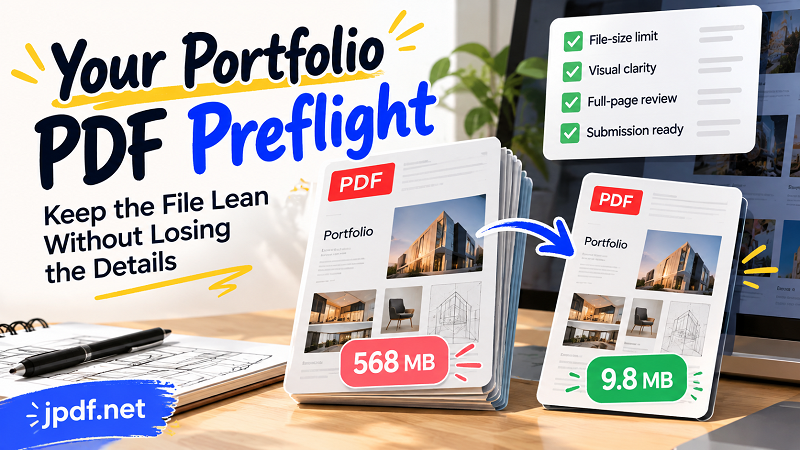
- Run the Preflight: Four Pass-or-Fail Checks
- When Export Adjustments Aren't Enough
- The Final Submission Test
Your first instinct might be to compress everything until the file fits. But there’s a catch: an aggressively compressed portfolio can turn crisp product shots into blurry thumbnails, make fine typography harder to read, and leave your best work looking less impressive than it actually is.
The smarter move is to treat your portfolio like a finished product that needs one last quality check. Before you send it to a recruiter, client, school, or hiring platform, run through this preflight process to make sure your PDF meets the technical requirements without sacrificing the details that make your work stand out.
Set the File-Size Budget Before You Export
Every submission has its own rules. One platform might accept a 20 MB PDF, while another might impose a much tighter limit. Email attachments introduce another set of restrictions, and some application portals specify both file size and supported formats.
Check the requirements before adjusting your export settings. Confirm the maximum file size, accepted file type, page limits, and any stated image-quality recommendations. If the platform allows up to 10 MB, for example, aim a little below that ceiling rather than trying to land exactly on it. A small buffer gives you room to accommodate unexpected restrictions without having to rebuild the file at the last minute.
Also, distinguish between a hard limit and a personal preference. A 4 MB portfolio isn't automatically better than an 8 MB version if the smaller file makes important details difficult to inspect. Your target is the smallest practical file that still communicates your work clearly.
Audit the Pages That Are Doing the Most Damage
Not every page contributes equally to a PDF's total size. A minimalist cover with a name, a few lines of text, and plenty of white space may add very little. A full-page architectural rendering, a collection of product mockups, or several high-resolution photographs can contribute much more.
Start by reviewing the pages with the heaviest visual content. Look for images placed at a much larger resolution than their displayed size requires, repeated visuals that don't add meaningful context, and decorative elements that consume space without strengthening the presentation. If you have several versions of the same project, consider whether every variation needs to appear in the final portfolio.
This isn't an invitation to strip out everything that makes your work interesting. It's an editing exercise. A carefully selected image with a clear caption can communicate more than three similar images competing for attention. Removing unnecessary content can improve the reader's experience while also reducing the amount of material your PDF needs to carry.
Decide What Can Shrink—and What Must Stay Sharp
A portfolio usually contains different types of visual information, and each deserves a different level of scrutiny. Large background photographs may tolerate some quality reduction without looking noticeably different on a laptop screen. Tiny interface labels, fine lines in technical drawings, product details, and typography are less forgiving.
Think about how recruiters or clients will actually inspect your work. A branding project might depend on the crisp edges of a logo. A UX portfolio may need readable interface text. An architecture portfolio could rely on thin lines and annotations that disappear when an image becomes too soft. In each case, the important details are part of the evidence that supports your skills.
Review your export settings with those differences in mind. Avoid reducing image resolution blindly, and don't assume that a file that looks acceptable when zoomed out will remain readable at a closer view. The goal is to preserve the visual information that helps someone understand and evaluate your work, not to make every image look identical.
Run the Preflight: Four Pass-or-Fail Checks
Before submitting your portfolio, evaluate it against four straightforward criteria. Treat each one as a requirement rather than a nice-to-have.
1. File-size compliance. Check the actual size of the exported PDF, not the size of the original design project. Confirm that the file stays within the receiving platform's limit and uses the required format. If it fails, return to the specific pages or assets that need attention instead of randomly changing every setting.
2. Visual clarity. Inspect the pages that contain small text, detailed graphics, product photography, or complex layouts. Look for pixelation, compression artifacts, fuzzy edges, and text that becomes difficult to read. Pay extra attention to the parts of each project that demonstrate your expertise.
3. Full-page consistency. Flip through the entire document from beginning to end. Check for unexpected blank pages, awkward image crops, shifted layouts, inconsistent margins, missing captions, and pages that feel disconnected from the overall presentation. A PDF can pass the technical checks and still look unfinished.
4. Submission readiness. Open the exported file independently and make sure it displays correctly. Confirm that the pages appear in the intended order, the text is readable, and the document contains the final version of your work. Use a sensible filename that identifies the portfolio clearly, especially if you're sending multiple documents with an application.
If all four checks pass, your portfolio is ready to go. If one fails, fix that specific problem before sending the file.
When Export Adjustments Aren't Enough
Sometimes, careful editing and sensible export settings still leave you with a PDF that's too large. This is especially common when a portfolio relies heavily on photography, detailed mockups, or scanned material. You don't necessarily need to redesign the entire document to solve the problem.
A dedicated compression tool can help you reduce the file's size after export. For example, you can use JPDF's online tool to shrink pdf size when your portfolio needs to meet a stricter upload limit. Start with a compression level that preserves the details your work depends on, then compare the result with the original.
Don't judge the compressed version by its file size alone. Open both versions and inspect the same pages side by side. Check small text, fine lines, gradients, photographs, and any other elements that carry important information. If the compressed file looks noticeably worse, try a less aggressive setting or revisit the assets that contribute most to the problem.
If the document still exceeds the limit, consider whether you can remove redundant pages, replace oversized decorative images, or create a more focused version for that particular application. A tailored portfolio can be easier to review than a giant collection of every project you've ever completed.
The Final Submission Test
Your portfolio doesn't need to win a contest for the smallest PDF. It needs to arrive successfully, open without problems, and present your work the way you intended.
Before hitting Submit, confirm that the file meets the stated size limit, the important visual details remain clear, every page looks correct, and the document contains the right projects in the right order. Then open the final exported file one last time—not the original design document, not an earlier draft, and not the version you meant to upload.
That final check takes only a few minutes, but it can prevent an avoidable technical issue from distracting people from the work itself. Make the file lean, keep the details that matter, and let your portfolio do what it was created to do: make a strong case for you.