Your HTML page looks great.
- Browsers Scroll. PDFs Stop.
- The Same HTML Has Two Different Jobs
- What Usually Breaks First?
- Headings
- Tables
- Images
- Long Blocks of Content
- Responsive Design Doesn't Automatically Mean Print-Ready
- Print CSS Is Where the Magic Happens
- The Page Break Problem
- Five Things to Check Before Exporting
- 1. Page Size
- 2. Margins
- 3. Fonts
- 4. Images
- 5. Long Tables
- HTML File, Web Page, or Screenshot?
- When an HTML File Is a Great Starting Point
- Don't Judge the Result From the First Page
- Think “Fixed Document,” Not “Long Web Page”
- Ready for the Fixed-Page Version?
The spacing is clean. The images line up. The table fits perfectly. Nothing is overlapping. You open it in the browser, take a sip of coffee, and think: Done.
Then you export it as a PDF.
Suddenly, a heading is stranded at the bottom of a page. A table gets chopped in half. An image jumps somewhere it definitely wasn't supposed to go. And, for some reason, there's a giant blank space in the middle of the document.
Welcome to the slightly weird world of print layouts.
The browser and the PDF aren't playing by the same rules. A browser is designed to let content flow. A PDF has to decide exactly where every page begins and ends. That difference is responsible for a lot of surprisingly ugly documents.
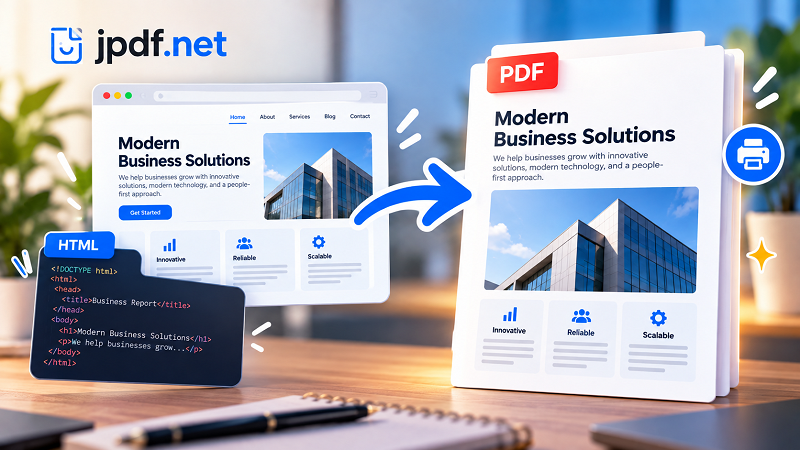
Browsers Scroll. PDFs Stop.
The easiest way to understand the problem is to forget about PDF for a moment.
A normal web page doesn't really care where a physical page ends. You scroll down, and more content appears. If a paragraph is 500 pixels tall, the browser simply gives it 500 pixels of space.
A printed page doesn't have that luxury.
It has a fixed height.
Eventually, the content has to stop and a new page has to begin.
That means converting HTML into a printable document requires decisions that a browser normally doesn't have to make:
- Where should the page break?
- Should this heading stay with the paragraph below it?
- Can this image be split?
- Should this table continue on another page?
- How much space should appear around the content?
- Where should headers and footers go?
Your HTML hasn't necessarily become “broken.”
It's simply entering a different environment.
The Same HTML Has Two Different Jobs
HTML is excellent at displaying information on screens because it is flexible.
A browser can adapt the layout based on:
- Screen width
- Device size
- Font rendering
- User settings
- Available space
- Responsive CSS
PDF is almost the opposite.
A PDF needs a fixed page structure. Once exported, page 3 is page 3. The content can't simply stretch the page because one paragraph happens to be longer than expected.
This is why a design that works beautifully on a laptop can produce awkward results on paper.
Think of it this way:
Web layout asks: “How should this content flow?”
Print layout asks: “Where exactly should this content stop?”
Those are very different questions.
What Usually Breaks First?
Not every element causes trouble. Certain types of content are simply more likely to expose pagination problems.
Headings
Imagine a heading appears near the bottom of a page, followed by a large paragraph.
The browser has no reason to care.
A PDF might leave the heading behind while pushing the paragraph to the next page.
The result?
A lonely heading sitting at the bottom of a page with nothing underneath it.
That's not technically invalid. It just looks terrible.
Tables
Tables are another classic troublemaker.
A short table might fit perfectly. A longer one can suddenly span multiple pages, creating questions such as:
- Should the header row repeat?
- Can a row split between pages?
- What happens if one cell contains a lot of text?
- Should the table start on a new page?
Without careful print rules, tables can become the moment your beautiful HTML document starts looking like it was assembled by three different people on three different computers.
Images
Images create another challenge because they have physical dimensions once they enter a print-oriented layout.
A large image might:
- Push important text onto another page
- Leave an unexpected blank area
- Get clipped
- Move away from its caption
- Break across pages
The browser can simply continue scrolling.
The PDF has to negotiate with a finite page.
Long Blocks of Content
A long paragraph, list, code block, or content section can also create awkward breaks.
Sometimes splitting the content is perfectly acceptable. Sometimes it makes the document much harder to understand.
The trick is knowing which elements can safely break and which ones should stay together.
Responsive Design Doesn't Automatically Mean Print-Ready
Here's another trap.
You may have built a responsive website that looks excellent on phones, tablets, and desktops.
That does not automatically mean it is ready for printing.
Responsive design is primarily concerned with adapting content to different screens.
Print design is concerned with adapting content to a physical page.
The priorities are different.
On screen, you might want:
- Navigation menus
- Interactive buttons
- Wide content areas
- Hover effects
- Animations
- Dynamic components
On paper, those things may be useless—or actively annoying.
A printable document may need:
- Defined page dimensions
- Appropriate margins
- Simplified navigation
- Controlled page breaks
- Print-specific spacing
- Headers and footers
- Different image behavior
In other words, screen CSS and print CSS don't always want the same thing.
Print CSS Is Where the Magic Happens
If HTML is going to become a serious printable document, print-specific CSS can make a huge difference.
The @media print rule allows styles to behave differently when the document is being prepared for printing.
That means you can tell the browser:
“When this is going to paper, forget how the screen version works. Use these rules instead.”
You might hide navigation, change spacing, adjust colors, control page breaks, or simplify parts of the layout.
Page-break properties are particularly useful when dealing with structured documents.
For example, a report might benefit from keeping a heading with the content that follows it rather than allowing the heading to become stranded at the bottom of a page.
The goal isn't to force every element onto a new page.
It's to prevent important relationships from being destroyed by pagination.
The Page Break Problem
Page breaks sound simple until you have a real document.
Suppose your report contains:
Chapter 1
Three paragraphs
A chart
Chapter 2
Five paragraphs
A table
Chapter 3
An image
Two paragraphs
You can't simply tell the system to break the page after every section. That might create enormous empty spaces.
Instead, you need to think about which elements have a natural relationship.
A heading belongs with its section.
A chart belongs near its explanation.
A caption belongs with its image.
A table header should ideally stay connected to the table.
This is why good HTML-to-PDF rendering is less about blindly forcing page breaks and more about controlling where breaks are allowed to happen.
Five Things to Check Before Exporting
If you're preparing HTML for a fixed-page document, check these five areas before hitting export.
1. Page Size
Decide whether the document is intended for Letter, A4, or another page size.
A layout designed around one physical dimension may behave very differently when rendered on another.
2. Margins
A webpage can happily use nearly the entire browser window.
A printed document needs breathing room.
Check your margins before worrying about tiny spacing issues inside individual components.
3. Fonts
A font that looks correct in development isn't useful if the final renderer can't access it properly.
Missing or substituted fonts can change line lengths, which can change paragraph heights, which can change page breaks.
One small font difference can create a surprisingly large domino effect.
4. Images
Check image dimensions and placement.
Ask:
- Is the image too large?
- Can it be split?
- Should it stay with a caption?
- Will it push important content onto another page?
5. Long Tables
Tables deserve their own inspection.
A table that fits on your screen may span several pages in the final document. Test long tables with realistic data rather than a tiny sample.
HTML File, Web Page, or Screenshot?
Not every visual document needs the same starting point.
- A web page makes sense when you're capturing content that already exists online.
- An HTML file makes more sense when you control the underlying document and want the structure, styling, and content to be rendered into a fixed format.
- A screenshot is different again. It captures exactly what was visible at a particular moment, but it doesn't preserve the underlying document structure.
That distinction matters.
If you need a searchable, structured, multi-page document, turning the source HTML into a PDF is usually a very different workflow from simply taking screenshots of the browser window.
When an HTML File Is a Great Starting Point
HTML is particularly useful when documents are generated from templates or data.
Think about:
- Invoices
- Business reports
- Certificates
- Product sheets
- Internal reports
- Printable forms
- Documentation
- Statements
- Automatically generated summaries
Instead of manually designing every PDF page, you can create a structured HTML template and use it as the source for a fixed document.
That can make repeated document generation much easier.
The challenge is making sure the HTML was designed with pagination in mind.
Don't Judge the Result From the First Page
Here's a simple mistake that's easy to make: you look at page one and assume everything is fine.
Page one often contains the cleanest content.
The real problems tend to appear later.
A long table might break on page four. A large image might create an awkward gap on page six. A heading might become separated from its content on page nine.
Always inspect the entire output.
For longer documents, jump through several pages instead of scrolling through only the beginning.
You're looking for patterns, not just one bad page.
Think “Fixed Document,” Not “Long Web Page”
This mental shift makes HTML-to-PDF work much easier.
Don't think:
“I'm putting my webpage into a PDF.”
Think:
“I'm creating a fixed-page version of a structured document.”
That changes how you approach spacing, page breaks, images, tables, and typography.
The browser is where your content flows.
The PDF is where your content settles.
Once you understand that difference, those strange blank pages and awkward page breaks stop feeling quite so mysterious.
Ready for the Fixed-Page Version?
HTML gives you flexibility. PDF gives you stability.
The trick is getting the transition between the two right.
Before exporting, check your page size, margins, fonts, images, tables, and page-break behavior. Use print-specific styling when the document needs more control, and always review the complete output instead of trusting the browser preview.
When your source is a structured HTML document and the goal is a clean, shareable, fixed-layout file, an html file to pdf workflow can turn flexible web content into something much easier to print, archive, submit, or send.
The browser doesn't need to think about where page 4 begins.
Your PDF does.
And that's where the real layout work begins.