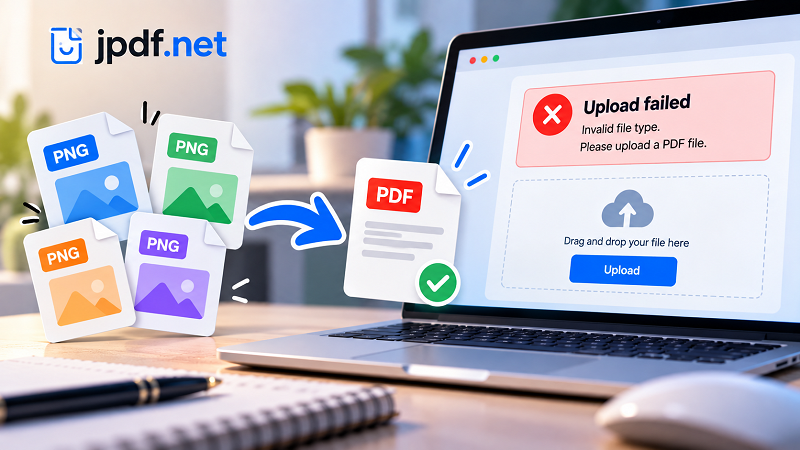
You click Upload. The progress bar moves. Then… nothing.
- “It Opens Fine” Isn't the Same as “It's Upload-Ready”
- The Six Reasons Your File Gets Rejected
- 1. You're Using the Wrong Format
- 2. The File Is Too Large
- 3. There Are Too Many Pages
- 4. The Dimensions Don't Match
- 5. The Quality Is Wrong
- 6. The File Didn't Export Properly
- Start With the Upload Rules, Not the File
- When an Image Needs to Become a Document
- Don't Fix File Size Before Checking File Type
- Your Upload-Ready Checklist
- Keep Three Versions When the Stakes Are High
- The Upload Button Is the Final Test, Not the First
Instead, you get a message that sounds strangely dramatic for a perfectly normal file: “Invalid file type.” “File too large.” “Unsupported format.” “Please upload a PDF.”
Your first thought is usually, But the file works fine.
And that's exactly the problem. A document can open perfectly on your computer and still fail an upload requirement. The file isn't necessarily broken. It simply doesn't match what the system expects.
Understanding that difference can save you from the classic last-minute scramble of opening random apps, renaming files, taking screenshots, and hoping something magically works.
“It Opens Fine” Isn't the Same as “It's Upload-Ready”
Your computer cares about whether a file can be opened.
An upload form cares about a completely different set of rules.
A submission system might check:
- File format
- Maximum file size
- Number of pages
- Page dimensions
- File extension
- Image quality
- File integrity
- Sometimes even the exact type of document requested
So when a system rejects a file, don't immediately assume something is wrong with the content.
First ask a much simpler question:
Does this file meet the upload requirements?
That's the difference between troubleshooting the document and troubleshooting the submission.
The Six Reasons Your File Gets Rejected
Most upload problems aren't mysterious. They usually fall into a handful of categories.
1. You're Using the Wrong Format
This is probably the most obvious one.
You have the document. You can read it. It looks great. But the form says:
PDF only.
If your file is a PNG, JPG, DOCX, or another format, the system doesn't care that the content is correct. The format is part of the requirement.
This happens frequently with scanned paperwork and screenshots. The information may already be exactly what you need, but it's stored as an image rather than a document.
2. The File Is Too Large
A PDF can be perfectly valid and still be rejected because it exceeds the upload limit.
For example, a form might accept files up to 10 MB while your document weighs 18 MB.
Large images are a common culprit. High-resolution scans and photos can add a surprising amount of data, especially when several images are packed into one document.
Don't assume that a longer document is automatically a larger document, either. A 30-page text-heavy PDF can be smaller than a five-page document containing huge photographs.
3. There Are Too Many Pages
Some systems impose page limits instead of—or in addition to—file-size limits.
You might have a 40-page report that uploads perfectly to one platform but gets rejected by another that allows only 20 pages.
This is where knowing the submission rules before preparing the final document becomes useful.
If the form says “maximum 10 pages,” don't wait until page 11 to discover the problem.
4. The Dimensions Don't Match
Not every document is judged only by its file extension.
Some workflows care about physical dimensions, especially when images or scanned paperwork are involved.
A document designed for standard letter-size printing may behave differently from one created at an unusual canvas size. A photo of a document may also have a completely different aspect ratio from the original page.
If the system specifies dimensions, treat them as requirements—not suggestions.
5. The Quality Is Wrong
There are two ways to get this one wrong.
The first is obvious: the file is too low-quality to be useful.
The second is less obvious: the file is dramatically higher quality than necessary, making it unnecessarily large.
Imagine photographing a receipt with a modern smartphone. You might end up with an enormous image containing far more detail than the receiving system needs.
The goal isn't “maximum quality.”
The goal is enough quality for the job.
6. The File Didn't Export Properly
Sometimes everything looks correct until you try to submit the file.
A document may have been interrupted during export, generated incorrectly, or saved in a way that leaves it unreadable to the receiving system.
If a file should be accepted but repeatedly isn't, try opening the final exported copy rather than relying on the original source document.
The version you upload is the version that matters.
Start With the Upload Rules, Not the File
Here's a simple habit that makes document submissions much easier:
Read the requirements first. Prepare the file second.
Before editing anything, look for these five pieces of information:
- Accepted format: PDF, JPG, PNG, DOCX, etc.
- Maximum size: 5 MB, 10 MB, 25 MB, or another limit.
- Page limit: If one exists.
- Dimensions: Especially important for image-based submissions.
- Additional requirements: Naming rules, password restrictions, color requirements, resolution, or other instructions.
Once you know those rules, the correct workflow becomes much clearer.
Without them, you're basically guessing.
When an Image Needs to Become a Document
This is where things can get slightly confusing.
You might have a perfectly readable PNG containing a scanned certificate, screenshot, receipt, or form. But if the destination specifically requests a PDF, the image itself isn't enough.
Instead of recreating the document from scratch, you can turn the image into a PDF while preserving the visual content.
For example, if you have several scanned pages as PNG files, they can become a multi-page document in the correct sequence. A single image can also become a single-page PDF when that's what the submission requires.
The important part is to keep the original images until you've confirmed that the final document looks right.
Never replace your source files too early.
Don't Fix File Size Before Checking File Type
A common mistake is to jump straight into compression.
Someone sees “Upload failed” and immediately thinks:
“The file must be too big.”
Maybe. But maybe not.
A better troubleshooting order is:
Format → Pages → Dimensions → Size → Quality
Why this order?
Because there's no point compressing a 12 MB PNG if the system requires PDF. And there's no point reducing a 30-page document to 5 MB if the real problem is a 20-page limit.
Find the actual restriction first.
Then fix that restriction.
Your Upload-Ready Checklist
Before submitting a document, run through this quick list:
File
- Is it the required format?
- Does the extension match the actual file type?
- Does the file open normally?
Size
- Is it below the maximum allowed size?
- Did large images make it unnecessarily heavy?
Pages
- Is the page count within the limit?
- Are all required pages included?
- Are there accidental blank or duplicate pages?
Appearance
- Can you read the text?
- Are images clear?
- Is anything cropped or rotated incorrectly?
Content
- Is this the latest version?
- Does it contain the correct name, date, number, or signature?
- Did you accidentally upload a draft?
Submission
- Does the filename make sense?
- Is the file actually the one you intended to upload?
That final check can take less than a minute.
It can also save you from discovering an embarrassing mistake after the deadline.
Keep Three Versions When the Stakes Are High
For important submissions, it helps to separate your files into three categories:
Original: The source material you don't want to lose.
Working copy: The version you're editing, rearranging, converting, or preparing.
Submission copy: The final file that meets the destination's requirements.
This simple separation prevents a common disaster: modifying the only copy of an important document and later realizing you need the original version.
It also makes future changes easier. If the submission rules change tomorrow, you still have the source material.
The Upload Button Is the Final Test, Not the First
A document isn't finished just because you've exported it.
It's finished when the final version satisfies the purpose it's being submitted for.
That means checking the format, size, pages, dimensions, readability, and content before you reach the upload screen.
And if the original material happens to be a set of images, don't panic when the destination asks for something different. A quick convert png to pdf workflow can turn those visual files into a document format that's much easier to submit, share, and archive.
The trick isn't finding a magical file format that works everywhere.
It's understanding what the destination expects—and preparing your document accordingly.
Because “the file opens on my computer” is only step one.
“The system accepted it” is the finish line.