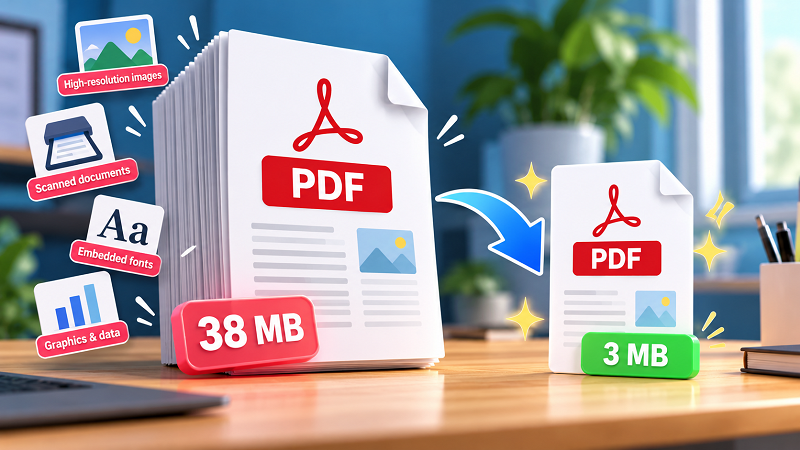
Five pages. One PDF. Somehow, the file is 38 MB.
- The Page Count Is Not the Real Problem
- Suspect #1: Huge Images
- Suspect #2: Scanned Documents
- Suspect #3: You Exported It at Maximum Quality
- Suspect #4: Fonts and Other Hidden Content
- A Quick Detective Test
- When Smaller Is Actually Better
- Compress It — But Know What You're Trading
- Don't Optimize a Problem That Doesn't Exist
At first glance, that doesn't make much sense. A few pages of text shouldn't need that much storage, right?
Well, the number of pages is only part of the story. A PDF can be short and still be ridiculously heavy because of what's hiding inside it. High-resolution images, scanned pages, embedded fonts, graphics, and other content can quickly turn a seemingly simple document into a heavyweight file.
If you've ever tried attaching a PDF to an email only to discover that it's “too large,” here's where things usually go wrong.
The Page Count Is Not the Real Problem
A 200-page text document can be smaller than a 10-page image-heavy presentation.
Why? Because PDFs store more than the visible words on a page.
A document made mostly of selectable text is generally lightweight. Replace that text with high-resolution photographs or scanned images and the situation changes dramatically.
This is why judging a PDF by its page count can be misleading.
Instead of asking, “How many pages does this file have?”, ask, “What is actually inside these pages?”
That question usually gets you much closer to the answer.
Suspect #1: Huge Images
Images are one of the most common reasons PDFs become bloated.
A camera photo can contain millions of pixels. That's great when you're printing a poster or editing the original image, but unnecessary when the image is simply sitting inside a document that someone will view on a laptop.
The same thing happens with screenshots. A screenshot captured at a high resolution can add more weight than you might expect, especially when a document contains dozens of them.
If your PDF contains product photos, scanned receipts, screenshots, charts, or other visual content, images should be one of the first things you investigate.
The trick isn't simply to make every image as tiny as possible. Extremely aggressive compression can make text inside screenshots blurry and photographs look terrible.
The goal is to find the sweet spot between acceptable quality and reasonable file size.
Suspect #2: Scanned Documents
Here's a particularly sneaky one.
A scanned 20-page document may look like a normal PDF when you open it. But technically, each page could be a large image.
That's very different from a digitally generated document where the text is stored as text.
Imagine scanning a stack of paperwork at high resolution. Every page becomes an image, and the PDF simply packages those images together. Add color, high resolution, and a few dozen pages, and the file can become enormous.
This is why scanned contracts, forms, certificates, receipts, and old paper documents can be much larger than expected.
If your PDF came from a scanner rather than a word processor or design application, scanning is worth investigating first.
Suspect #3: You Exported It at Maximum Quality
Many applications give you several export or PDF settings.
And “maximum quality” sounds like the obvious choice.
It isn't always.
High-quality export settings are useful when the document needs to be printed professionally or when preserving detailed graphics matters. But if you're sending the file through email, uploading it to a website, or simply sharing it for screen viewing, the highest possible quality may be unnecessary.
You're essentially carrying around extra data that the recipient may never notice.
For everyday digital documents, the best setting is often not “maximum.” It's the setting that produces a file that still looks good for its actual purpose.
Suspect #4: Fonts and Other Hidden Content
Images get most of the attention, but they're not the only possible source of extra size.
PDFs can contain embedded fonts, vector graphics, transparency effects, annotations, metadata, and other elements created by the software that produced the document.
Sometimes these aren't a problem at all. Other times, a complicated design or unusual export process can add more data than you'd expect.
This is one reason two visually similar PDFs can have dramatically different file sizes.
You don't necessarily need to understand every technical component inside the file. What matters is recognizing that the visible document is only part of what the PDF contains.
A Quick Detective Test
When a PDF seems too large, don't immediately start deleting pages.
Try this instead:
- Look at the source. Was the file scanned, exported from a design application, created from a presentation, or generated from a word processor?
- Check the visuals. Does every page contain large photographs or screenshots?
- Consider the purpose. Is this document intended for professional printing, or will almost everyone read it on a screen?
- Compare similar files. If one five-page PDF is 2 MB and another is 30 MB, something inside the larger file is doing the heavy lifting.
This little investigation often tells you whether the problem is the document itself or simply the way it was exported.
When Smaller Is Actually Better
There is a common assumption that a larger file must be a higher-quality file.
Not necessarily.
A 25 MB PDF isn't automatically better than a 3 MB PDF. If both look identical on screen and contain the same useful information, the smaller one may simply be more efficient.
File size matters when you're dealing with email attachment limits, upload restrictions, cloud storage, mobile devices, or slow connections. It also matters when you're sending the same document to dozens of people.
A leaner PDF can mean faster uploads, quicker downloads, easier sharing, and less storage.
That's a pretty good return for a little file housekeeping.
Compress It — But Know What You're Trading
Once you've identified that the PDF is unnecessarily large, the next step is reducing its size.
A compress pdf tool can simplify this process by reducing the amount of data stored in the document while keeping the result usable.
But compression is not magic. There's always some trade-off, particularly when images are involved.
If the document contains tiny text inside screenshots, detailed charts, or photographs that need to remain sharp, extremely aggressive compression may make the result worse.
For a casual email attachment, a stronger reduction may be perfectly fine. For a document that will be printed or carefully inspected, you'll probably want to preserve more quality.
The right question isn't “How small can I make this PDF?”
It's “How small can I make it while keeping it good enough for its job?”
Don't Optimize a Problem That Doesn't Exist
There's one final rule worth remembering: not every PDF needs to be compressed.
If your document is already a few hundred kilobytes and uploads without a problem, there isn't much reason to squeeze it further.
Optimization is useful when there's an actual constraint: an upload limit, a slow transfer, limited storage, or a document that's unnecessarily heavy.
Otherwise, you're just spending time solving a problem that isn't causing any trouble.
So the next time a five-page PDF somehow weighs more than a full folder of documents, don't blame the page count.
Look inside.
There may be a few enormous images, a stack of scanned pages, or an unnecessarily high-quality export quietly turning a perfectly ordinary document into a digital heavyweight.