A 120-page PDF can be useful. Sending all 120 pages when someone only needs five of them? Not so much.
- First, Figure Out What You Actually Need
- A Long PDF Is Not Necessarily One Document
- Three Situations Where Smaller PDFs Make More Sense
- Don't Just Delete Pages From the Original
- Page Numbers Can Be Deceptive
- Make the New File Feel Intentional
- A Simple Rule: Keep the Original, Create the Version You Need
- Smaller Can Be Smarter
This happens all the time. You receive a large report, download a lengthy manual, scan an entire document, or get a PDF containing several sections that were never meant to travel together. Then someone asks for “pages 14, 18, and 27.”
And suddenly you're scrolling through a giant document trying to remember where everything is.
The good news: you don't have to send the entire PDF just because that's how it arrived.
First, Figure Out What You Actually Need
Before touching the file, define the destination.
Are you sending a few pages to a client? Uploading supporting documents to a website? Saving a particular section for later? Sharing one chapter with a coworker?
The answer matters because you may not need to keep the original structure at all.
For example, a 60-page business report might contain an executive summary, market research, financial data, and several appendices. If your coworker only needs the financial section, sending the complete report creates unnecessary work for both of you.
They have to find the relevant pages. You have to explain which pages matter. Everyone loses a little time.
A smaller, purpose-built PDF can eliminate that friction.
A Long PDF Is Not Necessarily One Document
This is an easy mistake to make.
A PDF is a file format, not a statement about how the content should be consumed. One PDF might contain dozens of completely different sections. Keeping everything in one file may have been convenient when the document was created, but that doesn't mean the same structure makes sense when you're sharing it.
Think about a university textbook. You don't photocopy the entire book every time someone needs one chapter.
The same principle applies digitally.
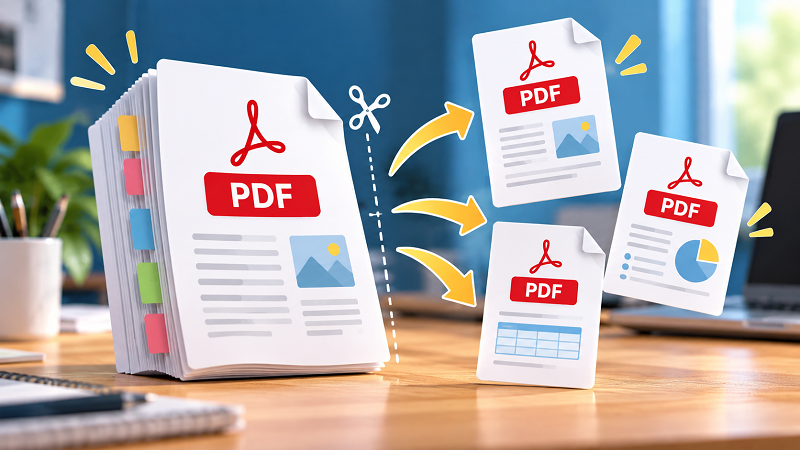
If only part of a document is relevant to the next task, create a separate file containing that part.
Three Situations Where Smaller PDFs Make More Sense
- When you're sharing information: Sending only the relevant pages makes the recipient's job easier. They don't have to hunt through unrelated material before finding what they need.
- When you're uploading documents: Some platforms have strict file-size or page requirements. A smaller document can make the submission process much simpler.
- When you're building a reference library: If you repeatedly return to one section of a large report, keeping that section as its own PDF can save time later.
There's another benefit that's easy to overlook: clarity.
A file named 2026-Q2-Financial-Summary.pdf tells you much more than Full-Annual-Report.pdf when you're looking for a specific piece of information six months from now.
Don't Just Delete Pages From the Original
There are two different jobs people often mix together.
One is editing the original document. You remove pages because they no longer belong.
The other is creating a new document from selected pages. The original remains untouched, while you create a smaller version for another purpose.
That distinction is important.
If the original is an official report, contract, application, or archive, you probably don't want to overwrite it just because you need a few pages today. Keeping the source file intact gives you a reliable original while allowing you to create separate versions for sharing.
It's basically the digital equivalent of making a photocopy instead of cutting up the only original.
Page Numbers Can Be Deceptive
Here's another little PDF trap: the number printed on a page isn't always the same as the page number shown by your PDF viewer.
A document might have a cover page with no visible number, followed by an introduction numbered with Roman numerals, and then the main section starting at page 1. Your viewer may count all of them differently.
So before extracting anything, look at the actual page thumbnails rather than relying entirely on printed page numbers.
This becomes especially important with long reports, scanned documents, manuals, and files assembled from multiple sources.
A ten-second check can prevent the classic mistake of sending page 16 when you actually meant page 17.
Make the New File Feel Intentional
Once you've selected the pages you need, take a moment to look at the result as its own document.
Does the first page make sense without the pages that came before it? Is there a heading that suddenly starts halfway through a sentence? Does the selected section depend on a table, definition, or note that was left behind?
Sometimes the technically correct pages aren't the most useful pages.
For example, if the section you need starts on page 32 but its explanation begins on page 31, taking both pages may produce a much better document than extracting page 32 alone.
The goal isn't to grab the smallest possible number of pages. It's to create the smallest useful document.
A Simple Rule: Keep the Original, Create the Version You Need
This is probably the easiest PDF habit worth adopting.
Keep your original document unchanged. Then create smaller versions whenever a particular task only requires part of it.
Need three pages for an email? Create a three-page PDF.
Need one chapter for a colleague? Extract that chapter.
Need a specific section for an online submission? Create a dedicated file for that purpose.
Tools designed to split pdf files can make this process much faster, especially when you're working with long documents and need to select specific pages rather than manually rebuild the file.
The important part isn't the tool itself. It's the workflow behind it: don't make other people process information they don't need.
Smaller Can Be Smarter
PDFs are great at keeping large collections of information together. But “together” isn't always the same as “useful.”
When a document becomes too broad for the task in front of you, isolate the relevant pages and give them a clear purpose. You'll end up with files that are easier to send, easier to upload, easier to archive, and much easier to understand later.
And the next time someone asks, “Can you just send me the pages about that one thing?”, you won't have to send them the entire 120-page monster.
You'll already know exactly what to do.