A PDF can be perfectly readable, open without complaining, and still be carrying way more digital weight than it needs.
- The PDF That Quietly Gets Expensive
- Where Does All That Extra Weight Come From?
- The First Place You'll Notice the Difference: Sharing
- Storage Is Another Part of the Equation
- Mobile Devices Change the Calculation
- But Here's the Trap: Smaller Isn't Automatically Better
- Think in Terms of Purpose, Not a Magic Number
- A Better Way to Think About Compression
- When You Should Actually Reduce a PDF's Size
- Before You Compress, Decide What You Can't Afford to Lose
- A Practical Middle Ground
- The Real Goal Is a Better Document Workflow
That might not matter when you're looking at one file on your laptop. But the moment that document starts moving around—uploaded to a website, attached to an email, downloaded on a phone, synced to cloud storage, or duplicated across a team—the extra megabytes begin to matter.
This is the slightly annoying truth about PDF files: “It works” and “it works efficiently” are not the same thing.
And no, the answer isn't always to crush every PDF down to the smallest number possible. Good document optimization is about finding the right balance between file size and usability.
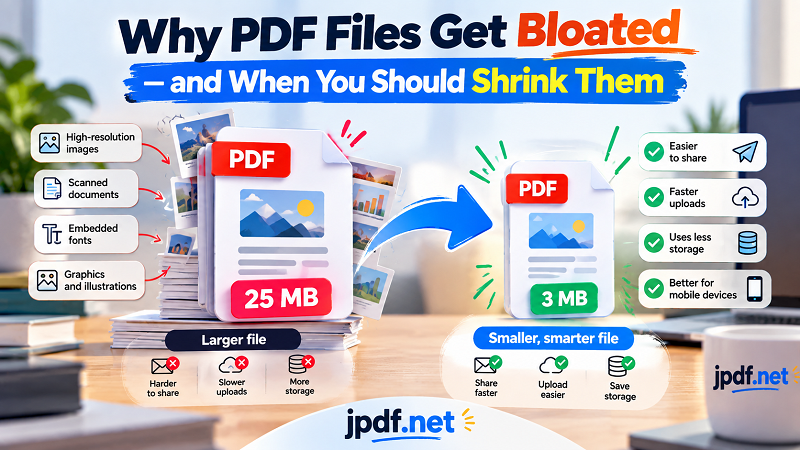
The PDF That Quietly Gets Expensive
Imagine a 12 MB PDF.
Twelve megabytes isn't exactly terrifying in 2026. Your phone probably has thousands of times more storage than that. Your computer won't break a sweat opening it.
Now imagine that same file is downloaded 500 times.
That's roughly 6 GB of transferred data from a single document.
Now imagine five versions of the document stored in cloud folders, included in backups, attached to emails, and copied to different devices.
Suddenly, that “just 12 MB” file doesn't look quite so innocent.
This is what makes document bloat interesting. The problem isn't necessarily the size of one file. It's the number of times that file gets moved, copied, stored, and opened.
Where Does All That Extra Weight Come From?
PDFs can contain much more than text.
High-resolution photographs are a common culprit. A document created from scanned pages can also become surprisingly heavy, especially when every page is essentially a large image.
Screenshots, graphics, embedded fonts, illustrations, and other visual elements can contribute as well.
The result is a document that looks completely normal to the person reading it. You might never notice that page 7 contains a photograph saved at a resolution intended for professional printing rather than a document being viewed on a laptop.
This is why two PDFs with almost identical page counts can have dramatically different file sizes.
Ten pages of mostly text? Usually lightweight.
Ten pages packed with high-resolution images? That's a different animal.
The First Place You'll Notice the Difference: Sharing
Email is where oversized PDFs tend to become annoying very quickly.
You attach the document, click send, and then discover that the recipient's email service has a different attachment limit. Or the message goes through, but someone on a slower connection has to wait for the file to download.
The same thing happens with messaging platforms and collaboration tools. A large PDF isn't necessarily impossible to send, but it adds friction to something that should be simple.
And there's an even more subtle problem: people often create multiple smaller copies of the same document simply because the original is inconvenient to share.
That creates version-control chaos.
Instead of one optimized document, you end up with:
report-final.pdf
report-final-small.pdf
report-final-small-v2.pdf
report-final-really-final.pdf
At that point, the file naming system needs more help than the PDF.
Storage Is Another Part of the Equation
File size becomes more interesting when documents live for months or years.
Businesses rarely keep just one copy of an important PDF. There may be local copies, cloud backups, email attachments, project folders, shared drives, and archived versions.
One oversized document isn't necessarily a problem. Thousands of oversized documents can become a completely different story.
This doesn't mean you should obsess over every kilobyte. Storage is relatively inexpensive compared with the cost of someone spending an hour fixing a broken document.
The smarter approach is selective optimization.
Keep high-quality originals when they matter. Optimize the versions that are intended for everyday distribution.
Mobile Devices Change the Calculation
A desktop user with a fast broadband connection may barely notice the difference between a 3 MB PDF and a 15 MB PDF.
A person opening the same document on a phone over a slower connection might have a very different experience.
Large files take longer to download, consume more mobile data, and can be less pleasant to work with on devices with limited resources.
This becomes especially relevant when your PDF is something people are expected to access repeatedly—menus, brochures, guides, catalogs, forms, reports, or downloadable resources.
The document doesn't have to be tiny.
It just shouldn't be carrying unnecessary baggage.
But Here's the Trap: Smaller Isn't Automatically Better
This is where PDF optimization gets interesting.
You can usually make a PDF smaller. The harder question is whether you should.
Aggressive compression can reduce image quality. Text inside scanned pages can become harder to read. Fine lines may disappear. Photos can develop visible artifacts. A document that looked professional before optimization can suddenly look like it survived three generations of photocopying.
That's a bad trade.
A file used for online reading doesn't necessarily need the same quality as a file prepared for professional printing.
Likewise, an internal reference document doesn't necessarily need the same image quality as a portfolio being sent to a client.
The right file size depends on the job.
Think in Terms of Purpose, Not a Magic Number
Instead of asking, “How small can I make this PDF?” ask:
Where will this document be used?
If the answer is “Someone will read it on a screen,” moderate compression may be perfectly reasonable.
If it's going to a professional printer, preserving visual quality becomes more important.
If it's being uploaded to a government portal or application system, the maximum allowed file size may become the deciding factor.
If it's an old archive copy that you may need to print years from now, aggressive compression might be a poor choice.
There isn't one perfect compression setting for every situation.
A Better Way to Think About Compression
Imagine three versions of the same document.
Version A: Maximum quality
This is your master. Keep it as close to the original as practical. Use it when print quality, editing, or long-term preservation matters.
Version B: Everyday sharing
This is the workhorse. It should look good on screens while being substantially easier to send, upload, and store.
Version C: Minimum practical size
This version is for situations where file-size restrictions are strict and visual quality can tolerate a larger compromise.
This three-level approach is much more useful than chasing an arbitrary target such as “make every PDF under 5 MB.”
When You Should Actually Reduce a PDF's Size
Compression makes sense when the current file is creating a real problem.
Maybe an upload system has a strict limit. Maybe you're emailing a document to dozens of people. Maybe a public download is unnecessarily heavy. Maybe your team has accumulated thousands of bloated PDFs.
In those situations, you have a concrete reason to optimize.
If you're simply looking at a 7 MB PDF and thinking, “That number feels big,” you may not need to touch it at all.
Optimization should solve a problem—not create a new one.
Before You Compress, Decide What You Can't Afford to Lose
This tiny bit of planning can save a lot of frustration.
If the PDF contains small text, make readability non-negotiable.
If it contains photographs, decide how much image quality matters.
If it contains charts or diagrams, make sure lines and labels remain clear.
If it's going to be printed, test a representative page instead of judging everything from a tiny screen preview.
And if the document is important, keep the original.
That last rule is worth repeating. Compression should normally produce a distribution copy, not erase your best-quality source.
A Practical Middle Ground
For most everyday documents, the sweet spot isn't maximum compression. It's enough compression to remove unnecessary weight while keeping the document comfortable to use.
That might mean choosing a moderate compression level rather than the most aggressive option.
It might mean optimizing only a copy intended for online sharing.
It might mean leaving a document untouched because its current size is already reasonable.
The important thing is that the decision comes from the workflow, not from a number on a file-properties screen.
The Real Goal Is a Better Document Workflow
PDF optimization gets much easier when you stop treating file size as a competition.
The smallest possible PDF isn't automatically the best PDF. A 900 KB document that looks terrible is not an improvement over a 3 MB document that remains sharp, readable, and useful.
The better goal is simple:
Use only as much file size as the document actually needs.
When a PDF is unnecessarily heavy, it's worth taking action. If you're preparing a file for sharing, uploading, or everyday access, you can reduce pdf size while keeping an eye on readability and visual quality.
That balance is the whole game.
A good PDF shouldn't feel heavy.
And a good compression workflow shouldn't make people notice that the file was compressed in the first place.