The web is built to change. That is one of its greatest strengths—and one of its biggest headaches.
- Question One: Will You Need the Information Later?
- Question Two: Do You Need the Original Page or a Stable Reference?
- Question Three: How Will You Use It After Saving?
- Bookmark, Screenshot, or PDF?
- Why Screenshots Start Falling Apart
- When a Web Page Deserves to Become a Document
- A Simple Check Before You Save
- Keep the Source and the Snapshot
A product page gets updated. A company rewrites its policy. An online guide gets redesigned. A helpful article moves to a different URL. Sometimes the page you carefully bookmarked simply disappears.
That is fine when you are casually browsing. It becomes a problem when the information matters.
Maybe you found instructions you will need next month. Maybe you are comparing product specifications, saving research for a project, documenting a policy, or collecting information for a report. In situations like these, saving the URL is not necessarily enough. You may need to preserve the actual version of the information you found.
Before you save anything, three simple questions can help you decide what format makes the most sense.
Question One: Will You Need the Information Later?
This sounds obvious, but it is the first thing people often skip.
If you are reading a recipe for dinner tonight, bookmarking the page is probably enough. If you are researching something for a project you will work on for several weeks, the situation changes.
The longer you expect to rely on information, the more useful it becomes to keep a copy that does not depend entirely on a live website.
Think about online instructions. Today, they might explain exactly what you need. Three months from now, the publisher may have rewritten the instructions, changed the images, moved important sections, or replaced the entire page.
A bookmark remembers where the information was. It does not necessarily preserve what the information said.
That distinction is easy to overlook until you return to a page and realize you are looking at a completely different version.
Question Two: Do You Need the Original Page or a Stable Reference?
Not every piece of online content needs to be preserved.
Some information is inherently temporary. News updates, live prices, changing availability, social posts, and other constantly evolving content are designed to be viewed in their current state.
Other information is more useful as a reference point.
Consider a technical guide, a set of instructions, a product specification, a policy page, or a long-form resource you need to discuss with someone else. In these cases, having a stable document can make the information easier to keep and revisit.
This is also where screenshots can become less convenient than expected. A screenshot captures what was visible, but a long webpage may require several images. You then have to keep those images in order, figure out what they represent, and explain the context to anyone receiving them.
A document can provide a more natural structure when the material needs to be read rather than merely shown.
Question Three: How Will You Use It After Saving?
The best format depends heavily on what happens after you save the information.
If you simply want to return to the original website and continue browsing, a bookmark is usually the most direct option.
If you need to remember one small visual detail, a screenshot might be all you need.
But if you expect to send the information to someone, read it offline, print it, attach it to a project, or keep it as a reference, a PDF can fit the workflow much better.
The key idea is simple: saving information and saving a link are not the same task.
Once you know what you plan to do with the content, the format decision becomes much easier.
Bookmark, Screenshot, or PDF?
There is no universal winner here. Each option solves a different problem.
- A bookmark keeps you connected to the original source. It is lightweight and convenient, but it depends on the website remaining available and the content remaining relevant.
- A screenshot preserves what you saw at a particular moment. It works well for short visual references, interface examples, or individual sections. For long pages, however, a collection of screenshots can quickly become awkward.
- A PDF sits somewhere between those approaches. It can package multiple sections into one document, making the material easier to store, share, print, or review without returning to the browser every time.
The choice becomes especially practical when the information has several parts. Instead of juggling browser tabs or a sequence of screenshots, you can work with one file.
Why Screenshots Start Falling Apart
Screenshots feel like the fastest solution because they require almost no thought. Press a button, save an image, done.
The trouble begins when the page is longer than your screen.
Now you have screenshot one, screenshot two, screenshot three, and perhaps screenshot four. Where does the first one end? Did the second screenshot overlap with it? Did you accidentally miss a paragraph between them?
There is another issue: screenshots preserve appearance better than structure. A webpage may contain headings, paragraphs, lists, tables, and images that make sense together. Once you slice that page into separate images, the relationship between those elements becomes harder to manage.
For a quick visual reference, that may not matter. For a document you intend to keep, it can.
When a Web Page Deserves to Become a Document
A useful rule is to look at the future life of the information.
If the content is something you will probably read once and forget, there may be no reason to save it at all.
If you expect to revisit it, share it, print it, reference it, or keep it for a project, creating a fixed copy becomes more reasonable.
This can apply to surprisingly ordinary situations.
You might save a set of instructions before starting a home project. You might keep a product specification while comparing equipment. You might preserve a policy you need to review with a team. You might collect several pages of online research before writing a report.
In each case, the website is the source, but the saved document becomes the working copy.
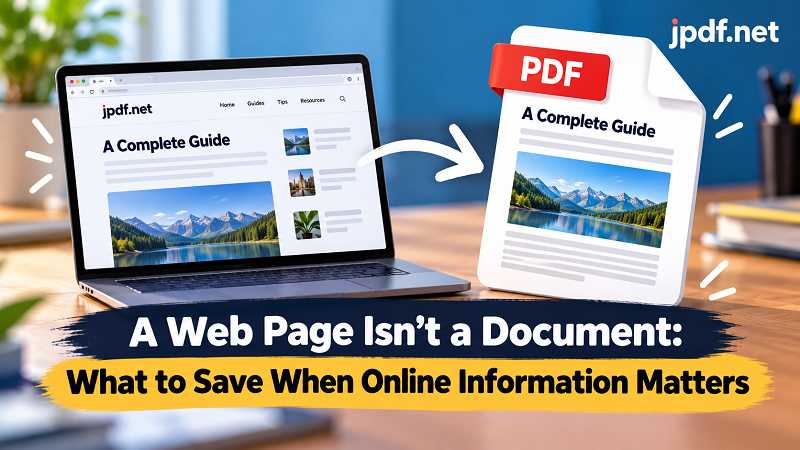
That is where html to pdf can be useful: instead of leaving important information scattered across browser tabs, you can turn the relevant web content into a document that is easier to keep and work with.
A Simple Check Before You Save
Before converting or saving a page, take a quick look at what is actually worth keeping.
Remove unnecessary navigation when possible. Check that important headings and sections are present. Make sure images or tables have not disappeared. If the page is extremely long, decide whether you really need everything or only a specific section.
Then read the result like a normal document.
Does the first page make sense? Are headings easy to follow? Are important images visible? Did a table become unreadable? Are page breaks in sensible places?
A few seconds of checking can prevent the classic situation where you confidently archive a document and only discover later that half of the content did not come through properly.
Keep the Source and the Snapshot
There is also no need to choose between keeping the original URL and keeping a document.
They serve different purposes.
The URL points back to the live source. The saved document represents the version you decided was useful at that particular moment.
Keeping both can be especially practical for research and reference work. If you later need updated information, you can revisit the original website. If you need to remember what you were looking at previously, you have the saved copy.
That gives you two different things: the live source and your reference version.
The web will continue changing. That is part of what makes it useful. But when a page contains information you genuinely need to keep, relying on a bookmark alone can leave too much of the workflow to chance.
A URL tells you where something lives. A document helps you remember what you actually needed from it.