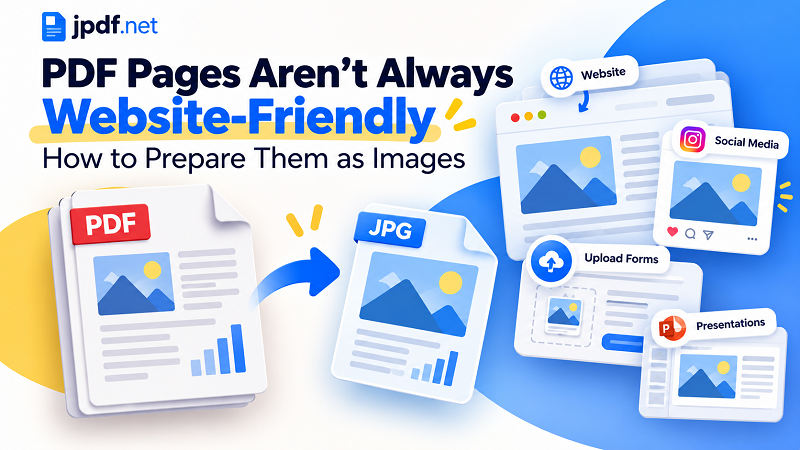
A PDF can look perfect on your laptop and still be the wrong format for what you need to do next. Maybe you want to place a product sheet on a website, upload a page to a form, share a visual on social media, or use one page from a report as a quick preview. Suddenly, the perfectly organized PDF becomes a little inconvenient.
- A PDF Is a Document. An Image Is Content
- Start With Where the Image Is Going
- Pick the Page Before You Pick the Format
- What Makes a PDF Page Work Well as an Image?
- JPG Isn't Automatically Better Than PNG
- A Cleaner PDF-to-Image Workflow
- Don't Convert More Than You Need
- Make the Image Fit the Job
That is not because PDFs are bad. Quite the opposite. PDFs are excellent for documents. The problem is that many digital workflows are built around images instead. When a platform expects an image, turning a useful PDF page into a clean JPG can be much more practical than forcing everyone to open the original document.
A PDF Is a Document. An Image Is Content
Think about the difference this way: a PDF is designed to hold a document, while an image is designed to be displayed.
A brochure might contain ten pages, but your website may only need the cover. A report could have dozens of pages, while a presentation only needs one chart. A restaurant menu may work beautifully as a PDF, but a social post might need a single page displayed directly in the feed.
The problem is rarely "I need to change this entire PDF." More often, it is "I need this particular page to work somewhere that expects an image."
That small distinction can make your workflow much simpler.
Start With Where the Image Is Going
Before converting anything, think about the destination. The same PDF page may need different treatment depending on where it will appear.
For a website, readability is usually more important than squeezing the file down to the smallest possible size. For social media, the dimensions and visual composition may matter more. For an online form, file size limits can become the deciding factor. For an email, you may want a lightweight image that still keeps text readable.
This is why there is no universal "best" image setting. The right output is the one that works for the next step.
A common mistake is to convert an entire PDF simply because the conversion tool makes it possible. If the original document contains 30 pages and you only need one graphic, exporting all 30 creates unnecessary files, extra storage, and more work later.
Pick the Page Before You Pick the Format
A multi-page PDF is often a collection of individual visual assets hiding inside one document.
Consider a product catalog. You might need three product pages for a website but have no reason to turn the remaining 27 pages into images. The same applies to reports, proposals, menus, presentations, brochures, and guides.
Choosing the relevant pages first keeps the workflow focused. It also makes the resulting image library easier to manage because every exported file has a purpose.
This approach is especially useful when the image will be uploaded somewhere with strict file limits. There is little value in creating a folder full of images that you never plan to use.
What Makes a PDF Page Work Well as an Image?
Once you know which page you need, look at the page itself. Not every PDF page will make an equally good image.
Text needs to remain readable. Charts should retain enough detail to understand labels and numbers. Images should not become noticeably soft. Important elements should not sit too close to the edge. Large blank margins may also make the final image look awkward when it is displayed outside the original document layout.
Resolution matters, but bigger is not automatically better. An enormous image can be unnecessarily slow to upload or display, while an aggressively compressed image can make small text look fuzzy.
The goal is balance: enough detail for the intended viewer, without creating a ridiculously heavy file.
JPG Isn't Automatically Better Than PNG
The word "image" covers several formats, and choosing between them can affect the final result.
JPG is generally a strong choice when the page contains photographs or other detailed visual content. It can keep file sizes relatively manageable while preserving good-looking imagery.
PNG can be useful when the page contains lots of text, sharp graphics, screenshots, diagrams, or elements where crisp edges matter. It often produces larger files, but the extra size can be worthwhile when clarity is the priority.
You do not need to obsess over the format every time. A simple rule works well: use the format that matches the content and the destination. A photo-heavy page and a text-heavy page do not necessarily need identical treatment.
A Cleaner PDF-to-Image Workflow
A practical workflow can be surprisingly simple:
Choose → Extract → Convert → Inspect → Upload
First, identify the exact page or pages you need. Next, make sure you are working with the correct version of the document. Then convert the selected pages into images. After that, inspect the result at roughly the size people will actually see it.
If the text is readable, the important details are intact, the proportions look right, and the file is reasonably sized, you are probably good to go.
For a quick and straightforward conversion, you can use a tool to convert pdf to jpg directly rather than taking screenshots and hoping the result looks sharp enough.
The key difference is that you are treating conversion as part of a workflow, not as the entire workflow.
Don't Convert More Than You Need
There is a strange temptation with digital files: if you can convert everything, why not convert everything?
Because future-you will have to deal with it.
Turning a 40-page PDF into 40 separate image files may create a messy folder when you only needed pages 2 and 17. It also makes it harder to find the useful files later and can increase upload time when a platform only needs a single image.
Selective conversion is often the smarter move. Keep the original PDF as the source document and create image versions only when there is a specific reason to use them.
That gives you the best of both worlds: the PDF remains your complete document, while individual pages become flexible visual assets when you need them.
Make the Image Fit the Job
The best PDF-to-image workflow is not about blindly choosing the highest quality setting or converting every page you can find. It starts with a simple question: What am I going to do with this image?
Once you know the destination, the rest becomes easier. Pick the pages that actually matter, choose a suitable image format, pay attention to readability, and check the final result before uploading or sharing it.
A PDF may be the right home for the complete document. But when one of its pages needs to live on a website, in a post, inside an upload form, or anywhere else that speaks the language of images, a well-prepared image can be the much more convenient version.