You know the moment. You open a PDF, find the page you need, zoom in until it looks perfect, take a screenshot, and then send it to someone. On your screen, it looked sharp. After sending it, suddenly the text looks soft, the edges look fuzzy, and the whole thing feels like it survived three generations of screenshots.
- A PDF and an Image Have Different Jobs
- Why Screenshots Often Don't Cut It
- When a PDF Page Makes More Sense as an Image
- Why PNG Is Particularly Useful for Text and Graphics
- But Bigger Isn't Always Better
- The Simple Workflow: PDF to PNG Without the Screenshot Drama
- PNG or JPG? It Depends on the Content
- When You Should Keep the PDF
- Stop Taking Screenshots the Hard Way
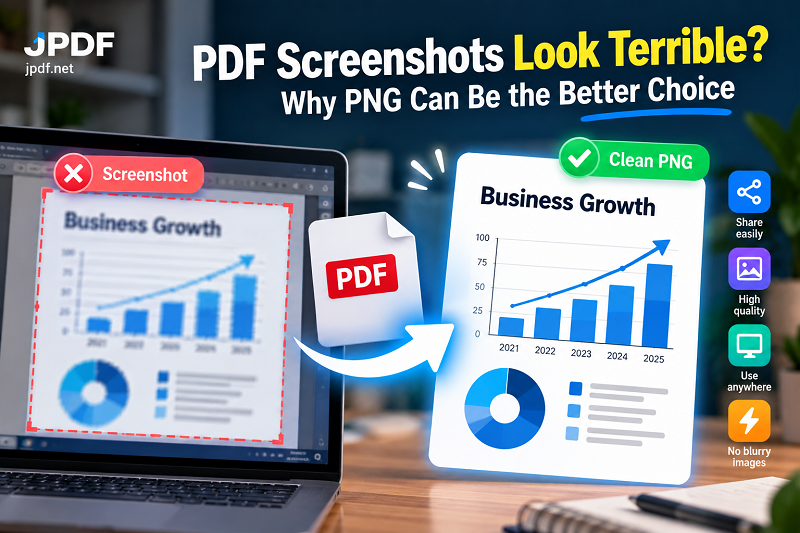
The problem isn't necessarily the PDF. It's the screenshot.
A screenshot captures what your screen happens to display at that exact moment. That means the final image can be affected by your display resolution, browser zoom, application scaling, cropping, and even how the image is later compressed by the platform where you share it. If the original PDF contains text, diagrams, tables, or detailed graphics, a casual screenshot can be a surprisingly poor way to turn that page into an image.
A PDF and an Image Have Different Jobs
PDFs are built around documents. They are excellent for keeping pages, text, graphics, fonts, and layout together in a format that can be opened across different devices. That's exactly why a PDF is useful for reports, forms, brochures, invoices, presentations, manuals, and other multi-page content.
Images play a different role. A PNG can be dropped into a website, presentation, design file, messaging app, or social media workflow without requiring the recipient to open a document viewer first.
That distinction matters when you don't actually need the entire PDF anymore. Maybe there is one page containing a useful chart. Perhaps a product sheet has a visual you want to share with your team. Maybe a document contains a page that needs to appear directly inside a blog post or presentation.
In those situations, turning the relevant page into an image can be much more convenient than sending the original document and telling someone which page to open.
Why Screenshots Often Don't Cut It
The biggest weakness of a screenshot is that you're converting a document into an image indirectly.
Imagine a PDF page designed at a large print-friendly size. You open it on a laptop display where only part of the page fits comfortably on screen. You zoom out to see the whole thing, take a screenshot, and end up with tiny text and reduced detail. Zoom in instead, and you may capture only part of the page.
Neither option is ideal.
There is another problem: screenshots are tied to your display. A high-resolution monitor and a standard laptop screen can produce very different results from exactly the same PDF. Browser zoom can change the result too. Even the interface around the PDF can accidentally become part of the image.
That's a lot of variables for something that should be simple.
A direct PDF-to-image conversion removes much of that guesswork. Instead of photographing what happens to be on your screen, you're rendering the document page as an image.
When a PDF Page Makes More Sense as an Image
Not every PDF needs to become a PNG. The format makes the most sense when the visual itself is what you want to share.
A chart is a good example. If you're discussing one chart with a colleague, sending an entire report just to point them toward page 18 adds unnecessary friction. The same goes for diagrams, infographics, selected document pages, instruction sheets, screenshots of layouts, and other visual material.
Images can also make sense when you're publishing content somewhere that expects an image rather than a document. A website editor, presentation tool, design application, or messaging platform may handle a PNG much more naturally than a PDF.
The key question isn't “Can I convert this PDF?” Almost certainly. The better question is “What am I trying to do with this page after I convert it?”
That question usually makes the format decision much easier.
Why PNG Is Particularly Useful for Text and Graphics
PNG has a useful advantage when an image contains sharp edges, text, diagrams, icons, or other graphical elements that need to remain crisp.
Unlike a typical screenshot that may introduce scaling issues, a properly rendered PNG can preserve the visual structure of the source page without depending on how large the PDF happened to appear on your monitor.
This is especially noticeable with small text. A screenshot taken while zoomed too far out can make text look muddy. Enlarging that screenshot afterward doesn't magically recreate the missing detail. You're simply making a low-detail image larger.
A properly rendered page gives you a much better starting point.
PNG can also be useful when transparency or clean graphic edges matter. For document pages dominated by text and visual elements, those characteristics can make the result easier to work with in other applications.
But Bigger Isn't Always Better
There is one catch: image quality and file size are connected.
A high-resolution image can look fantastic, but it can also be much larger than you expected. Convert several large PDF pages into high-resolution PNG files and your neat little project can quickly turn into another collection of oversized files.
That's why conversion should be intentional.
If you only need two pages from a twenty-page PDF, don't create images for all twenty simply because the option exists. If the image is going into a small online preview, you may not need enormous dimensions. If the page will be printed or displayed prominently, higher resolution may make more sense.
Good file handling isn't about maximizing everything. It's about choosing enough quality for the job without creating unnecessary baggage.
The Simple Workflow: PDF to PNG Without the Screenshot Drama
Start with the original PDF rather than a screenshot or copied image. Decide which pages you actually need, then convert those pages into PNG images.
After conversion, open the resulting image at a useful viewing size. Look closely at the smallest text, lines, charts, and other important details. If everything is readable and visually clean, you're ready to use it.
This is where a dedicated pdf to png converter can be useful. Instead of opening the PDF, adjusting the zoom, hunting for a screenshot tool, cropping the result, and hoping the quality survives, you can turn the document page into an image as a deliberate conversion step.
Then comes the boring but important part: name the files properly.
page-01.png works. Q4-Sales-Chart.png is better if you're going to have several images sitting in the same folder. A little organization here saves another round of digital archaeology later.
PNG or JPG? It Depends on the Content
PNG isn't automatically the right choice for every PDF page.
If the page contains detailed text, diagrams, interface elements, or graphics with sharp edges, PNG can be a strong option. If the page is dominated by photographs or complex photographic imagery, JPG may be more practical because it can often produce a smaller file.
Think of it as choosing the container based on what you're carrying.
A photograph doesn't necessarily need the same treatment as a page filled with fine text and clean lines. The destination matters too. A small image sent through a messaging app has different requirements from an image being placed into a high-resolution presentation.
The useful skill isn't memorizing which format is “best.” It's recognizing what the image needs to preserve.
When You Should Keep the PDF
There are plenty of times when conversion is the wrong move.
If someone needs to search the document, copy text, print multiple pages, review the complete file, or maintain the original document structure, keep the PDF. Turning every page into an image can actually make the document less useful.
You should also think twice before converting an entire long document simply because you need one visual from it. If the original PDF is already the right format for the job, leave it alone.
Conversion is most useful when it solves a specific problem.
That's the sweet spot: don't convert documents just because you can. Convert them because the resulting image is easier to use.
Stop Taking Screenshots the Hard Way
Screenshots are great for quick captures. They're fast, familiar, and already built into practically every device. But when you're trying to turn a polished PDF page into something you'll actually share, publish, edit, or reuse, they're not always the smartest shortcut.
The next time you find yourself zooming a PDF to 137%, dragging a selection box around the page, cropping out the browser controls, and checking whether the text survived the process, pause for a second.
If the original document already contains the clean visual you need, start there.
A direct conversion gives you a more deliberate result, a cleaner workflow, and one less opportunity for your beautifully formatted PDF to emerge from the process looking like it was photographed through a window.